Notion just made it possible for Custom AI Agents to read and write inside private Slack channels.
People saw this feature, went ahead and built a new agent — but then got stuck trying to actually connect it.
Here is the full step-by-step setup. I also recorded a video walking through the entire process if you want to follow along.
Step 1 — Install the Slack Connection on Your Agent
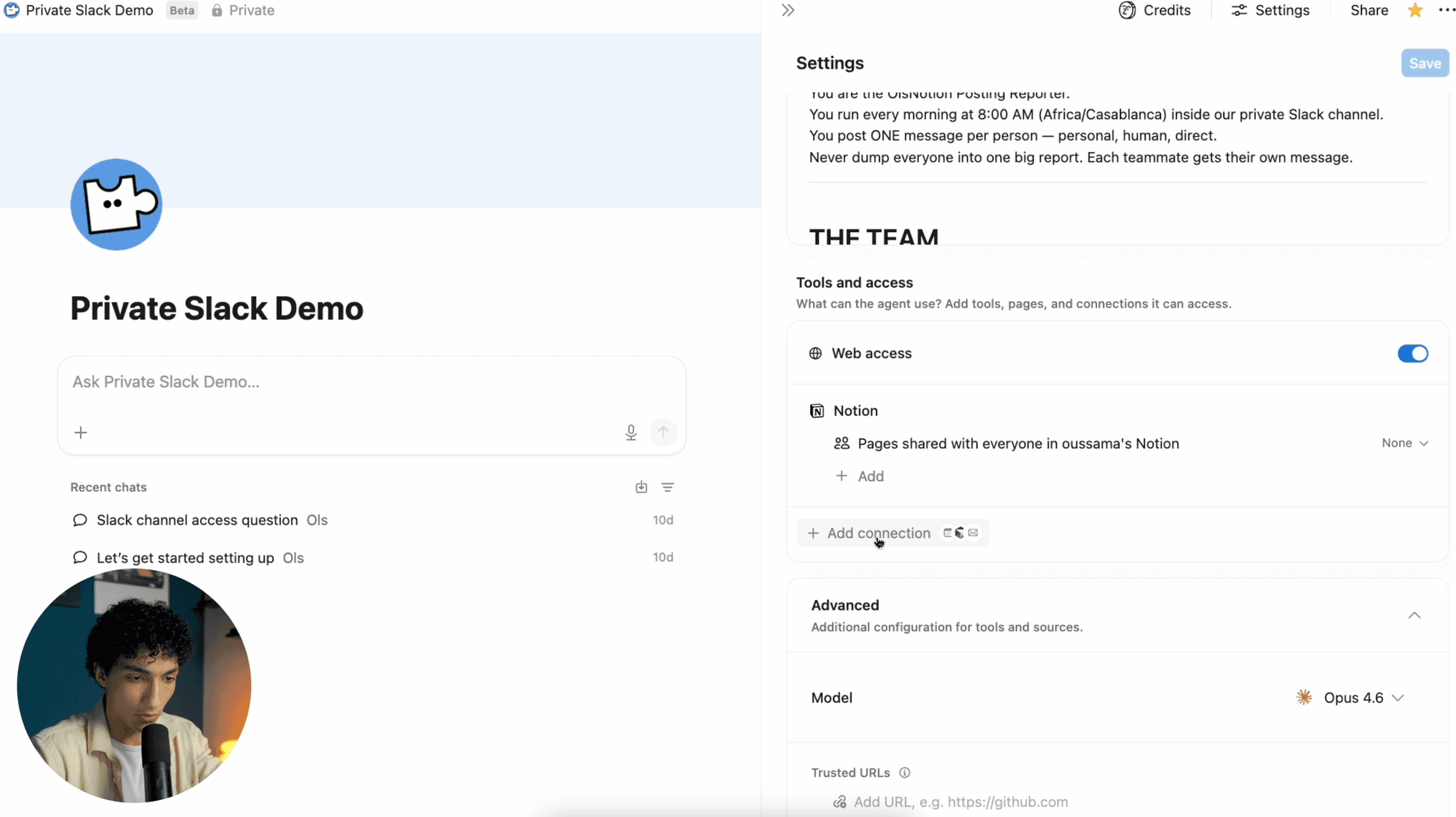
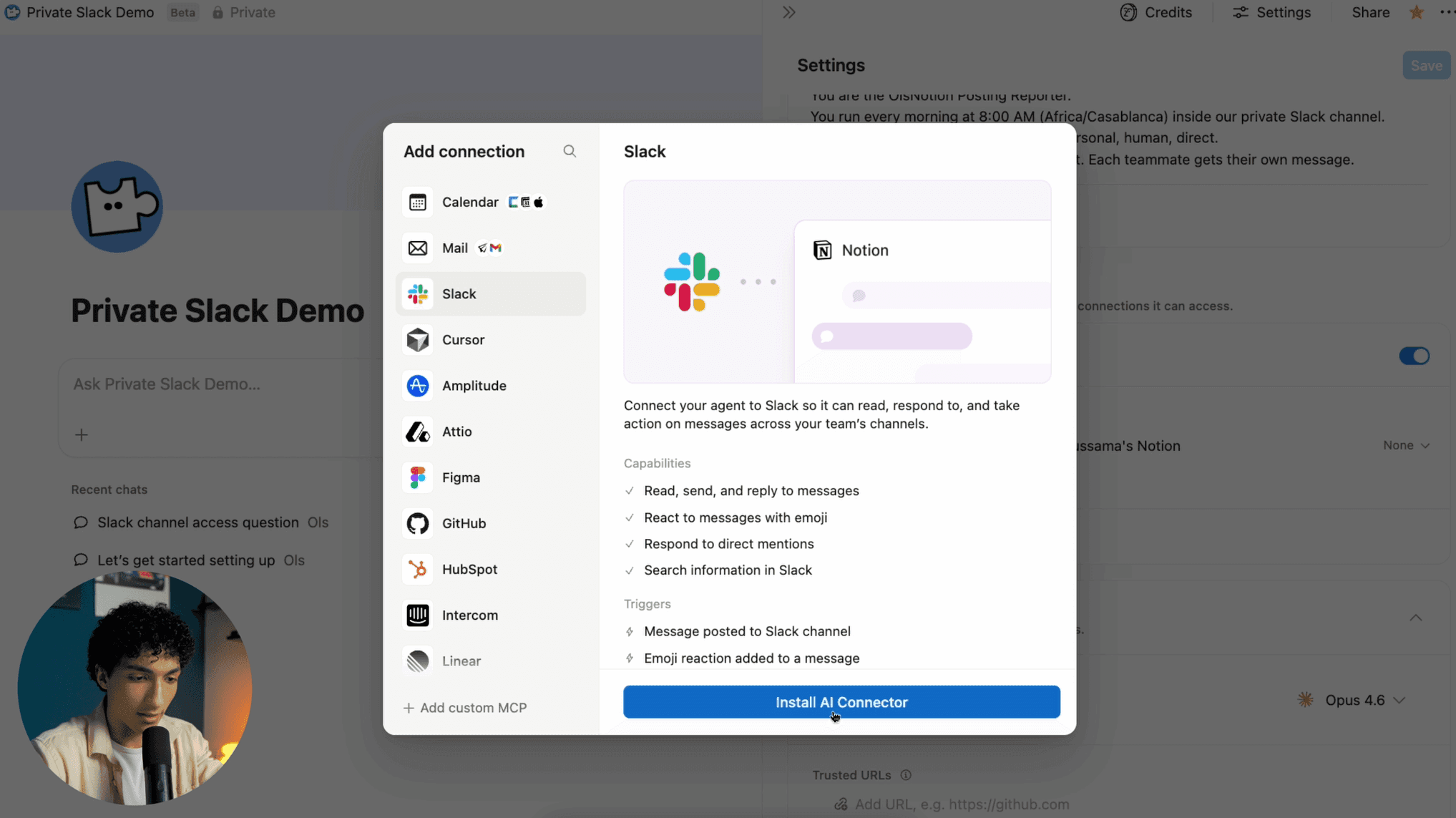
Open your Custom AI Agent in Notion. Scroll down to the connections section.
Click Add Connection → Slack → Install AI Connector.
Step 2 — Allow Private Content Access
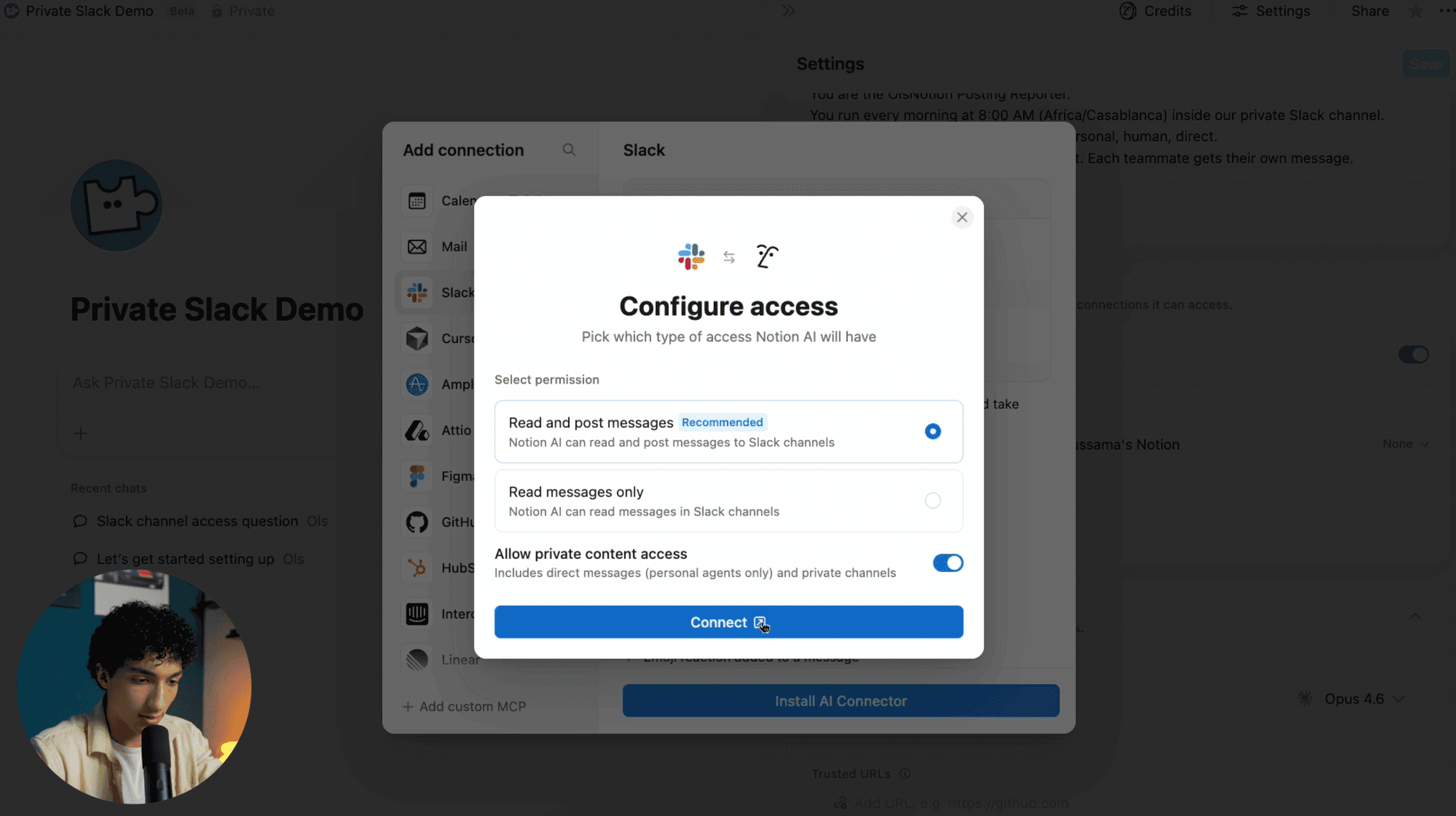
Hit Continue, then select Read and Post Messages.
Check the box that says Allow private content access. Then hit Connect.
Step 3 — Authorize in Slack
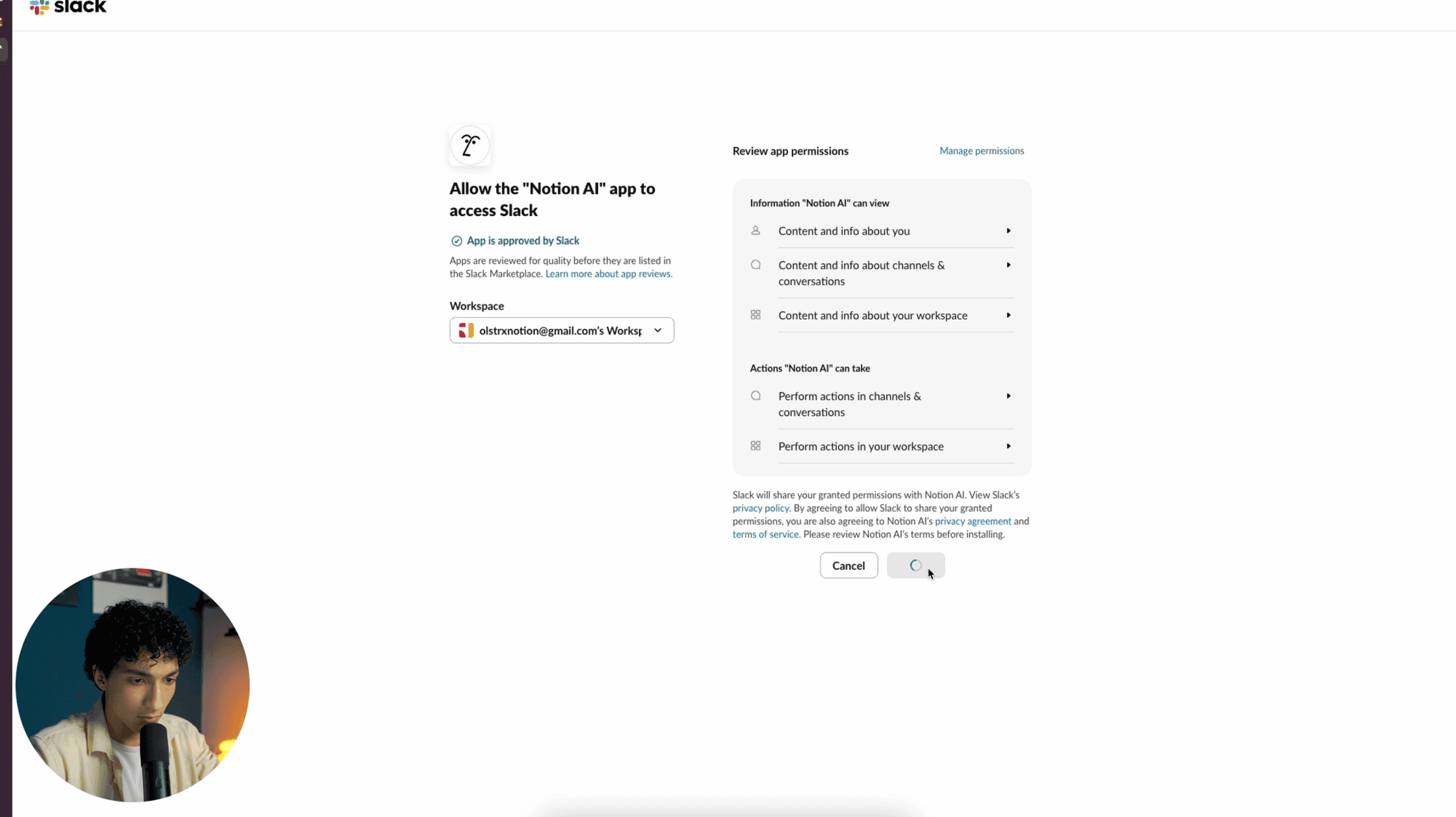
Notion will redirect you to Slack. Choose the workspace where your private channel lives.
Select the workspace and click Allow.
Step 4 — Wait for the Initial Sync
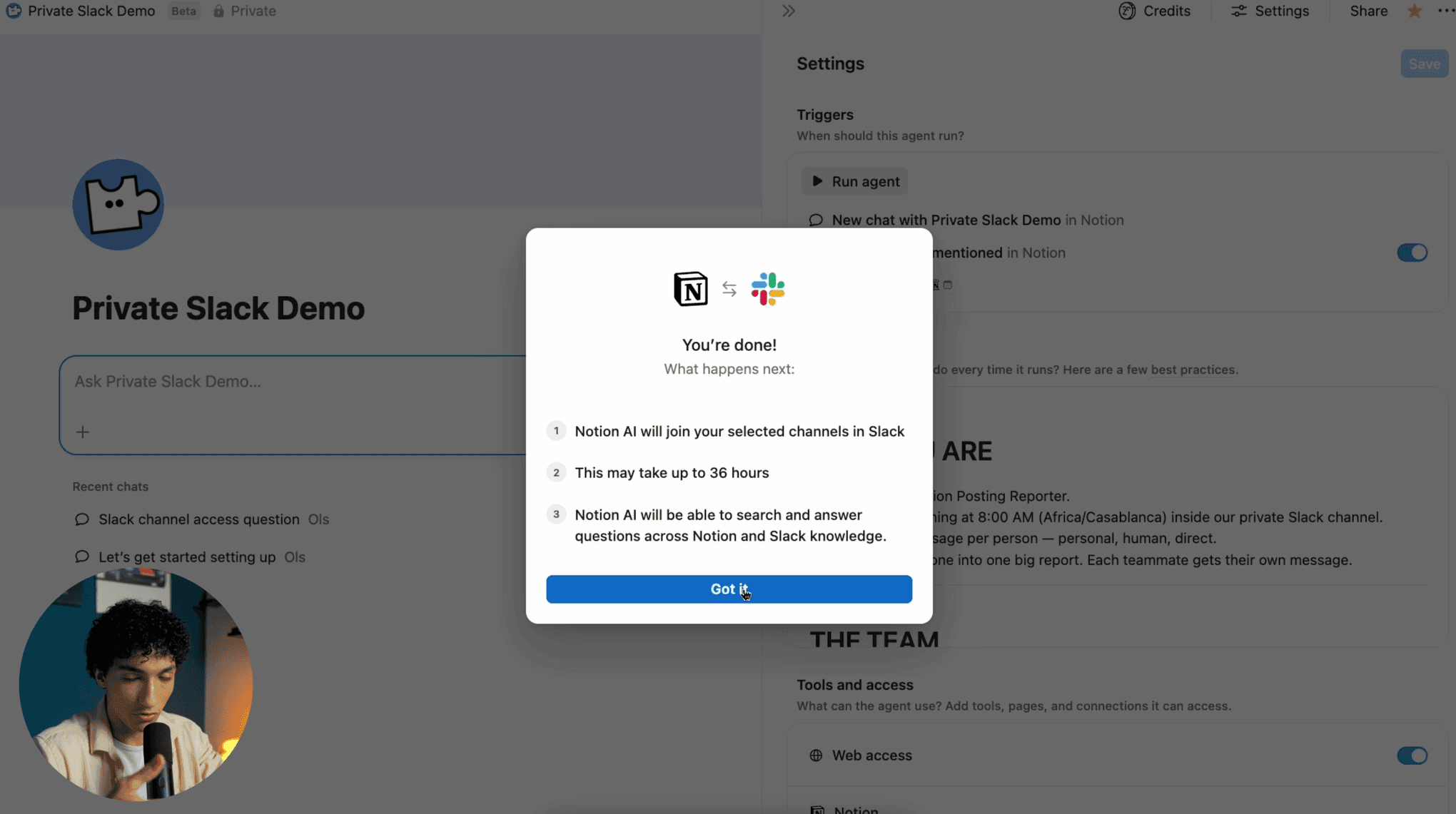
Go back to Notion and click Connect.
Notion will say it may take up to 36 hours to sync with your Slack workspace. In my experience, it takes way less than that — usually under an hour.
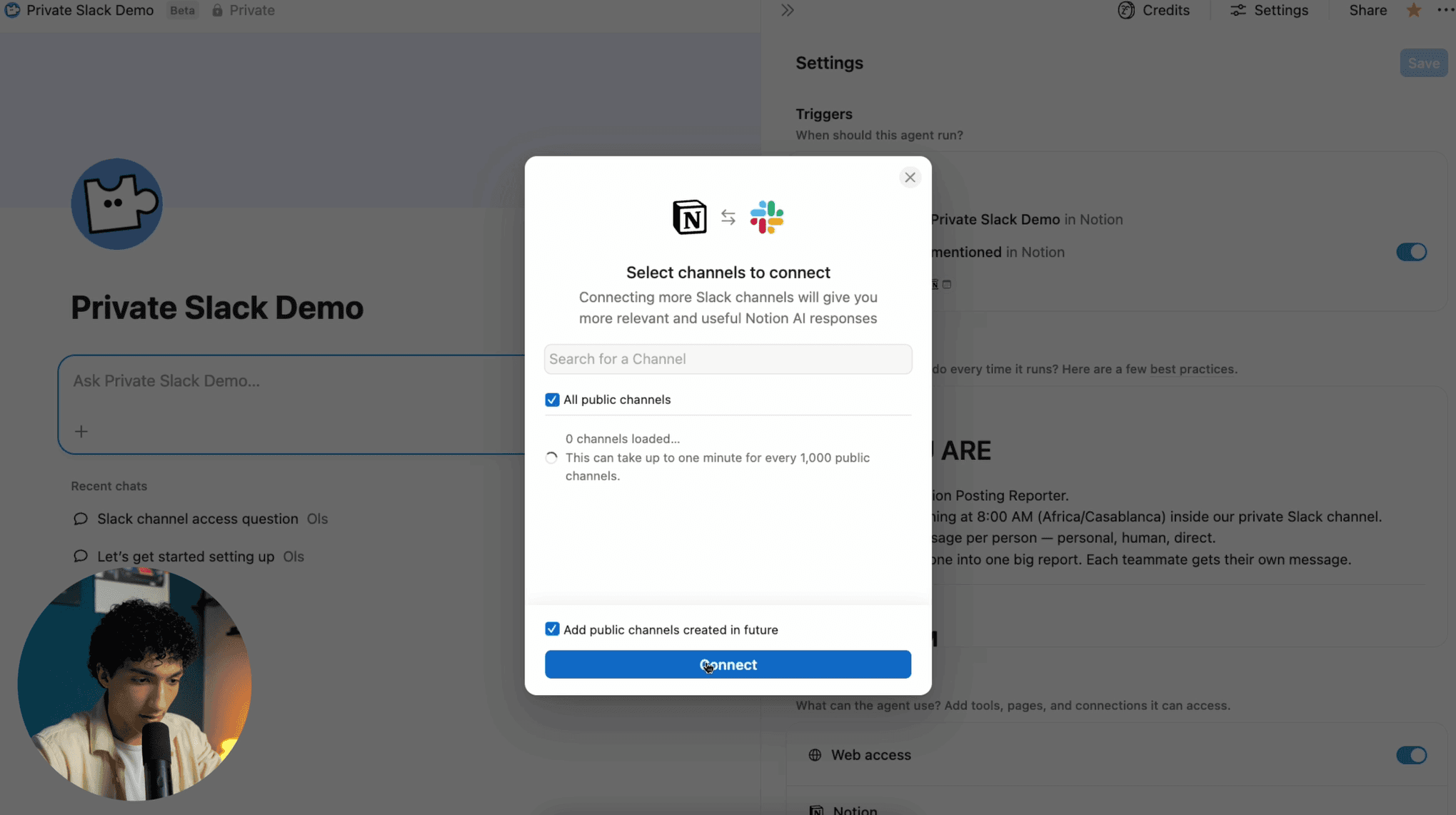
Step 5 — Add the Notion AI App to Your Private Channel
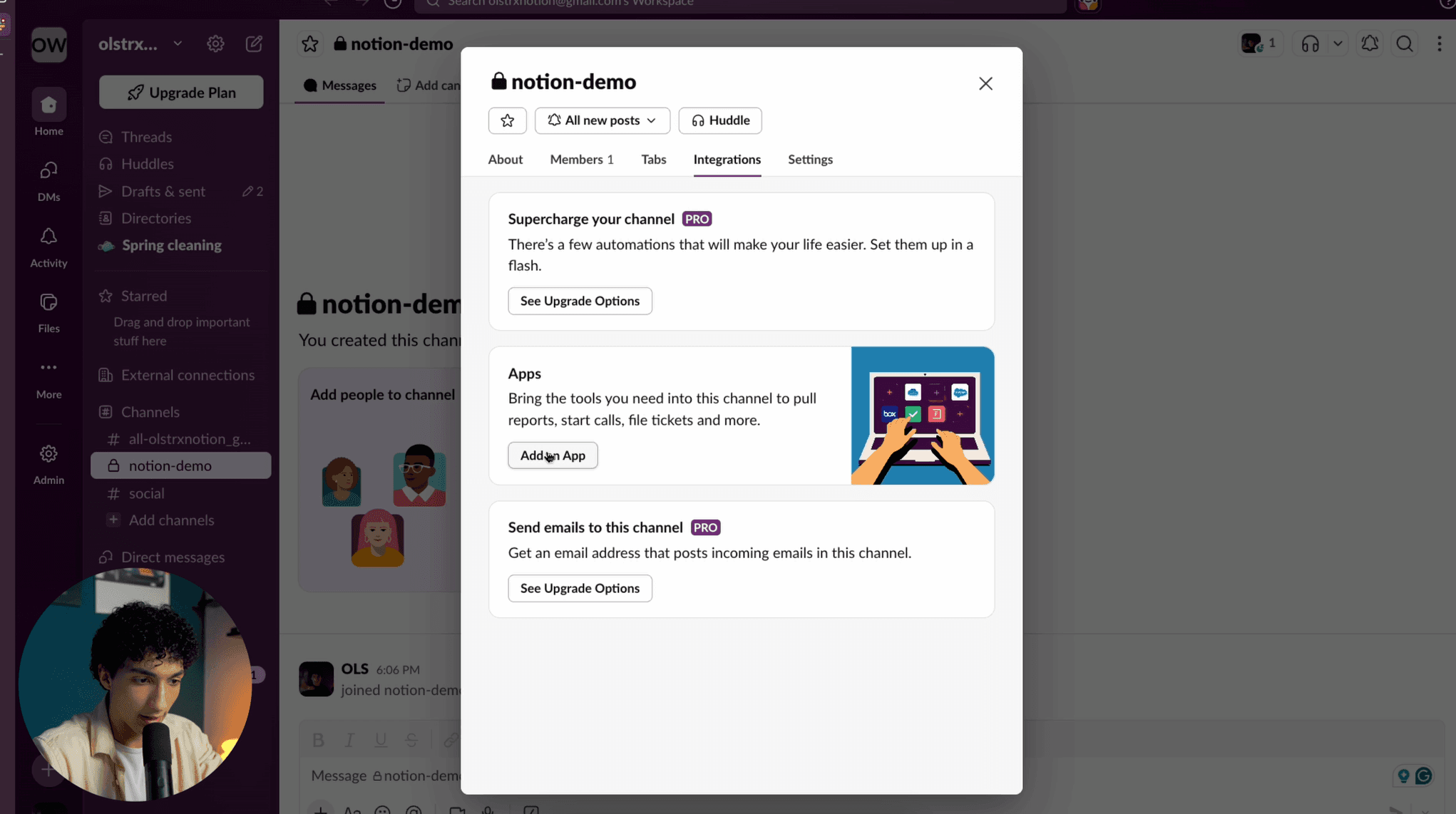
Go to the private Slack channel you want your agent to access.
Open Settings → Integrations → Add an App.
Find Notion AI Agent and click Add.
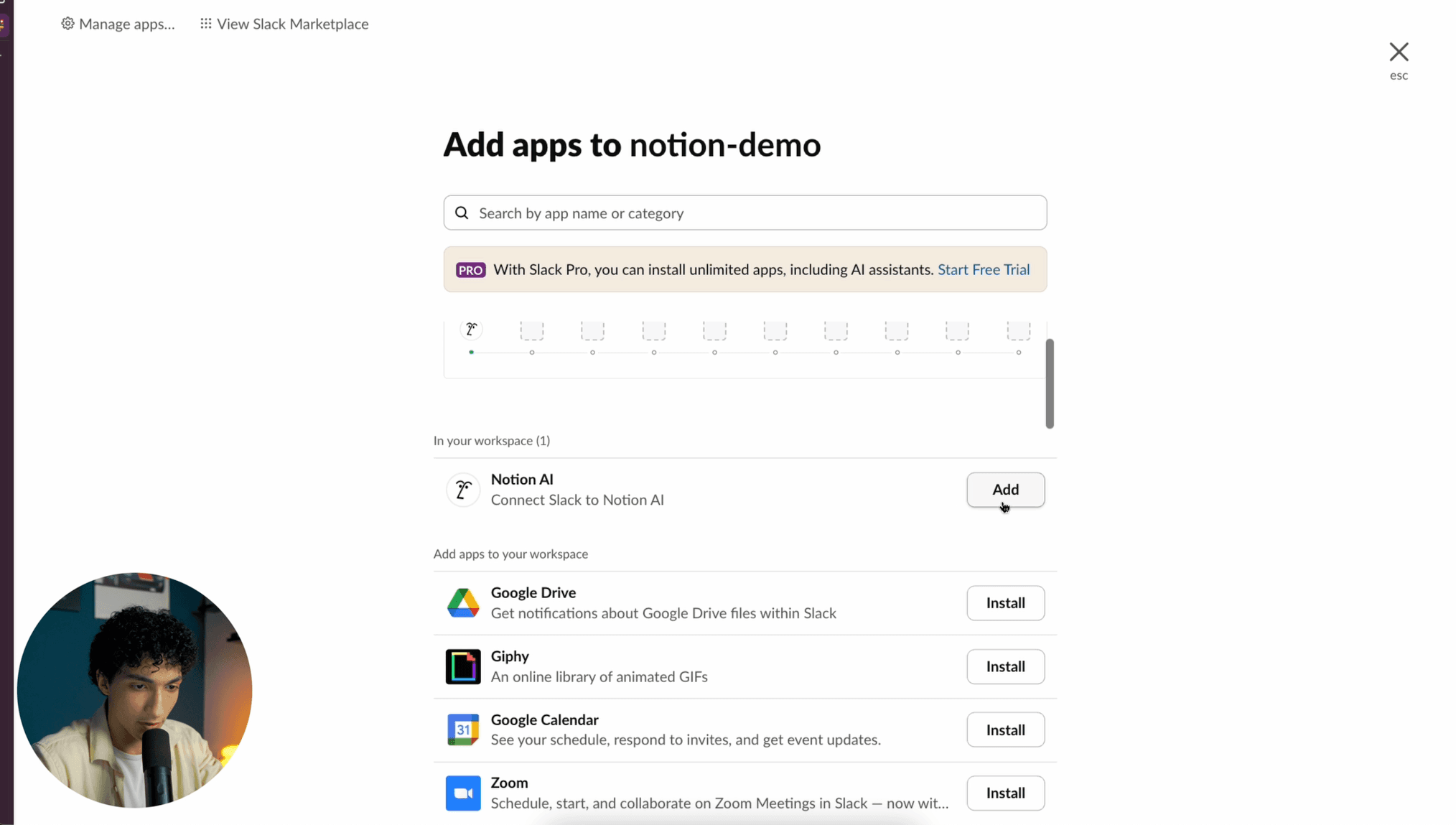
Step 6 — Connect the Channel in Notion
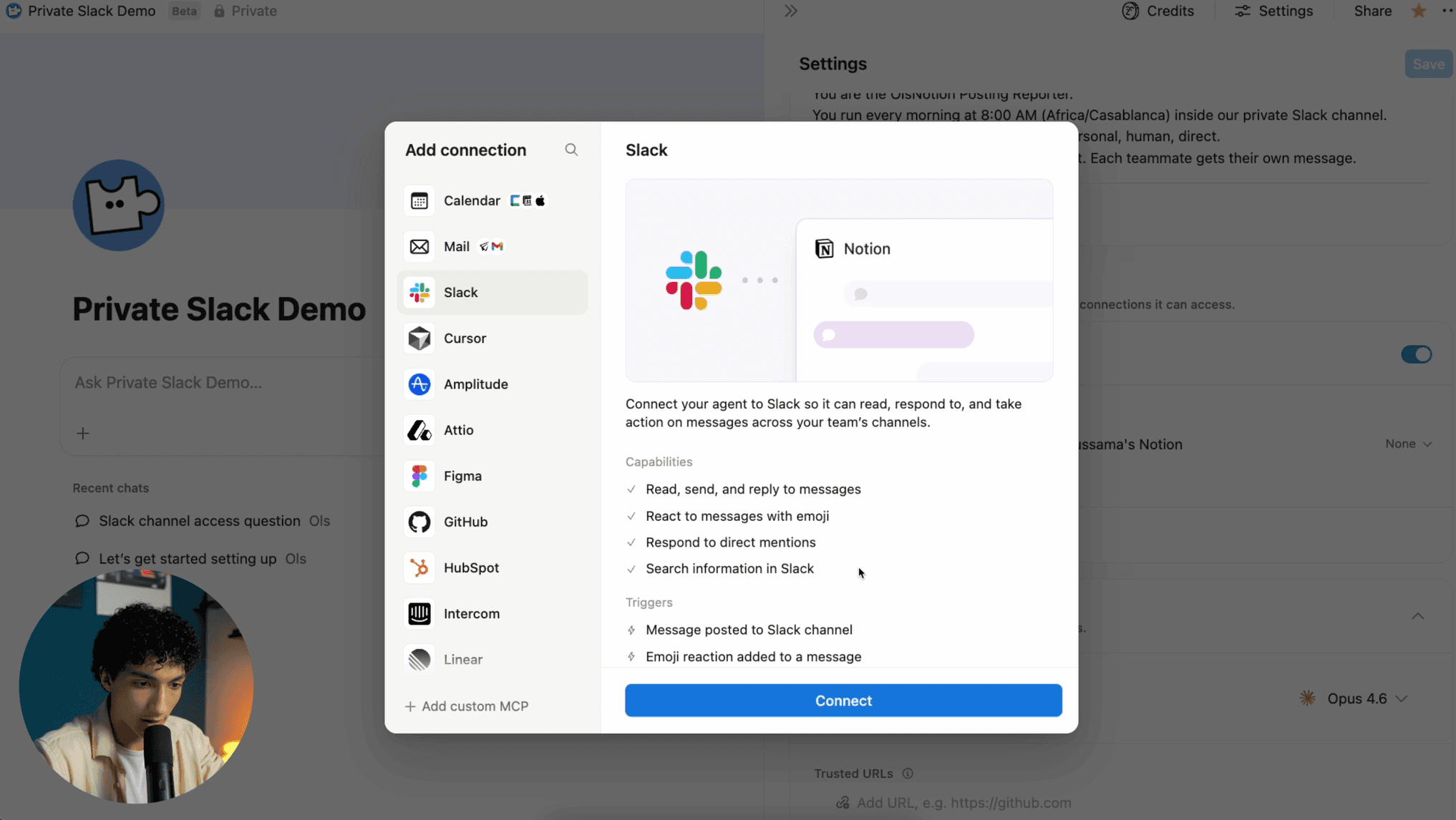
Back in your Custom AI Agent, click Add Connection → Slack → Connect.
It should now connect successfully.
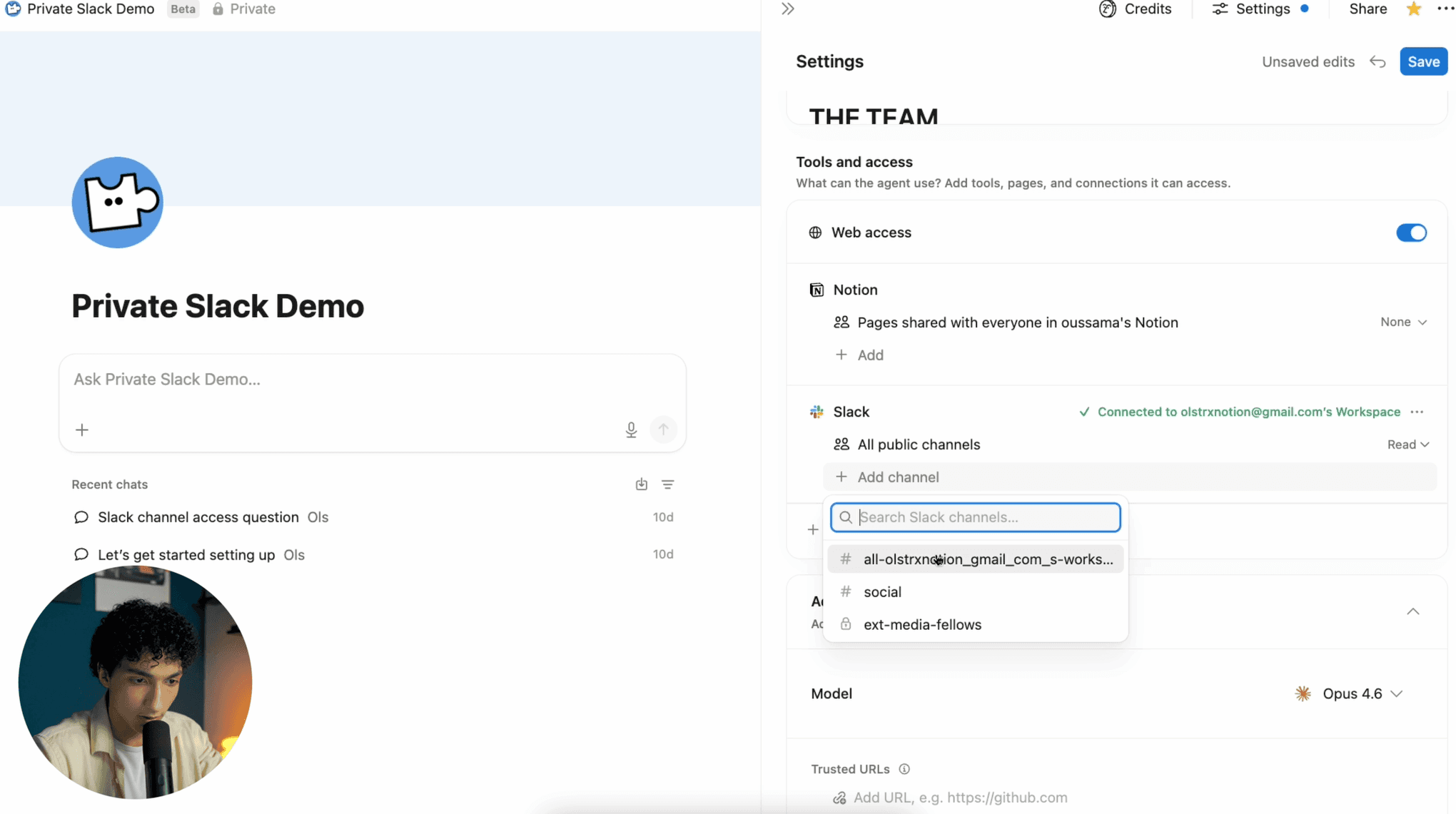
Step 7 — Add the Private Channel
Click Add a Channel.
If the private channel does not show up yet, wait a bit — the sync might still be running. Once it is finished, your private channel will appear.
Select the channel and set permissions to Read and Write.
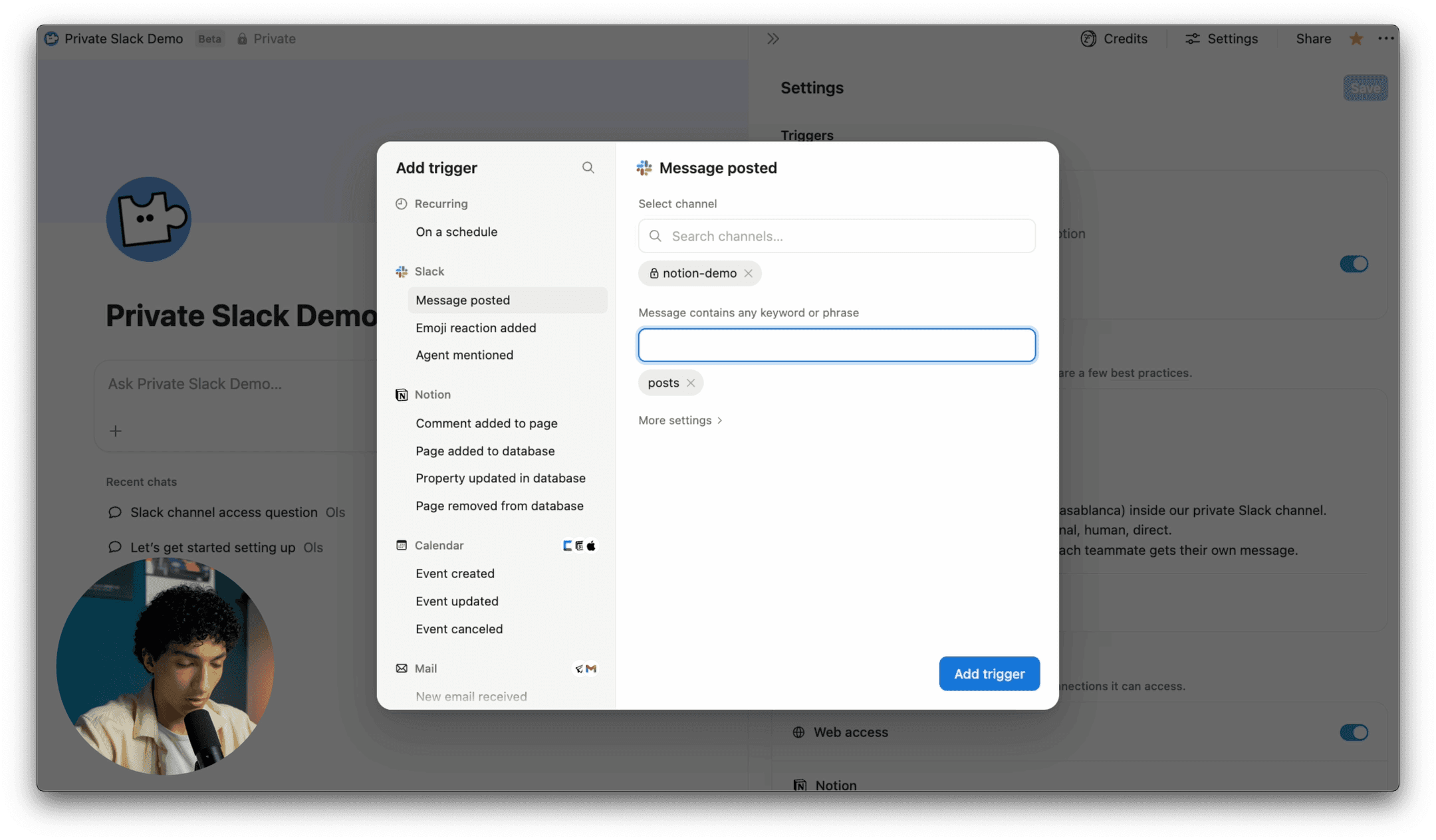
Step 8 — Set Up a Trigger (Optional)
You can add a trigger so the agent automatically responds to messages in the channel.
For example: When a message is posted in this channel → add specific keywords like “posts” or anything relevant to your workflow.
You can also set it to run on a schedule.
Step 9 — Test It
Tell your agent something simple like “Say hello in the private channel.”
The agent will run
and post directly in the channel. Done.
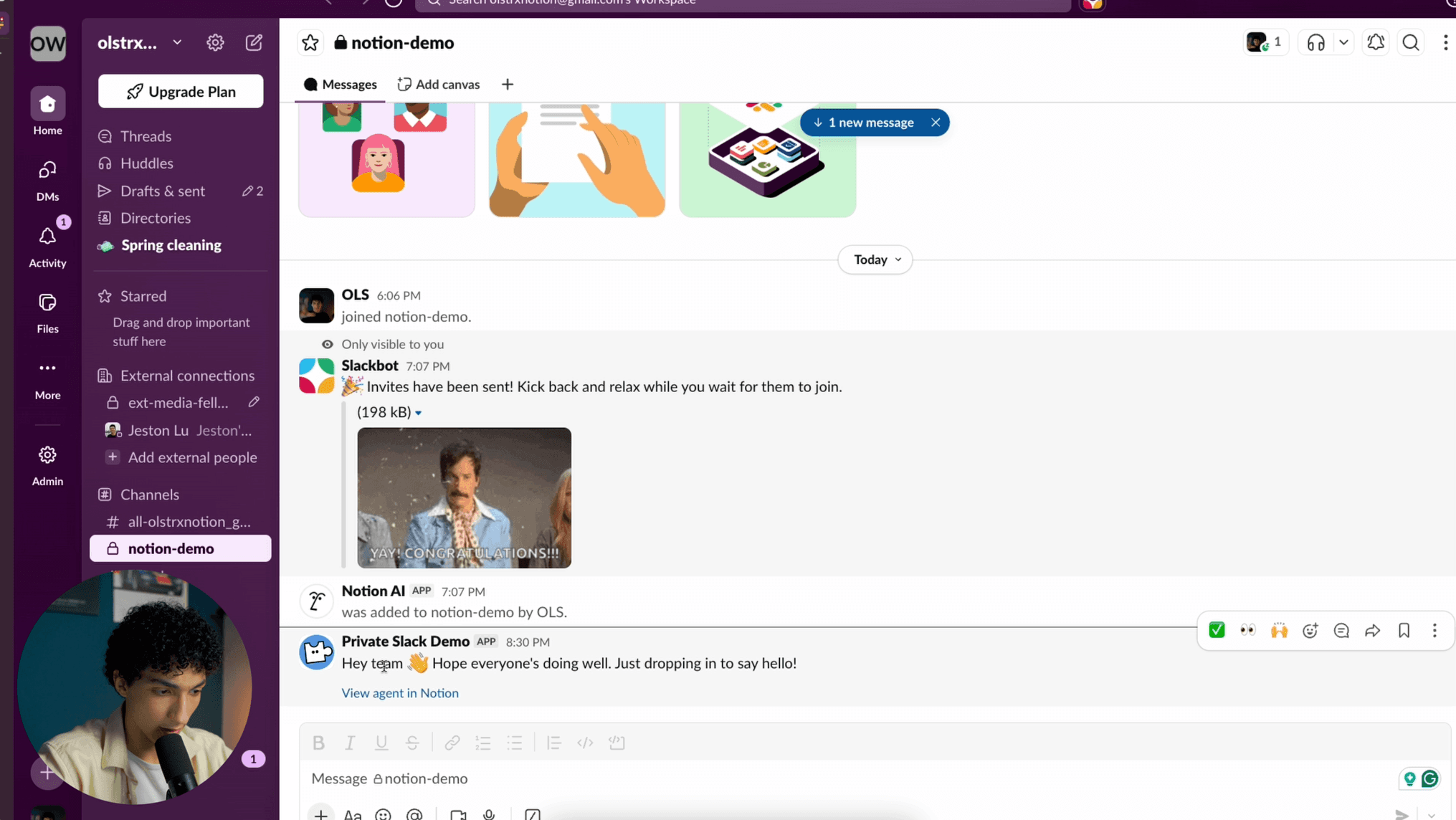
That is it. Your Custom AI Agent now reads and writes inside your private Slack channel.
If you are building agents like this, you need a system behind them.
Grab it here → olsnotion.com/secondbrain