If you keep giving your Notion AI agent the same prompt over and over — stop.
Notion has a feature called Skills. You write the prompt once, save it as a Skill, and use it anytime with one mention. No more retyping. No more copy-pasting from a notes app.
Here is how to create one. Two methods — both take under a minute.
Method 1 — Create a Skill From Any Page
This is the fastest way. You probably already have a page with a prompt you keep reusing.
Step 1 — Create or open a page with your prompt
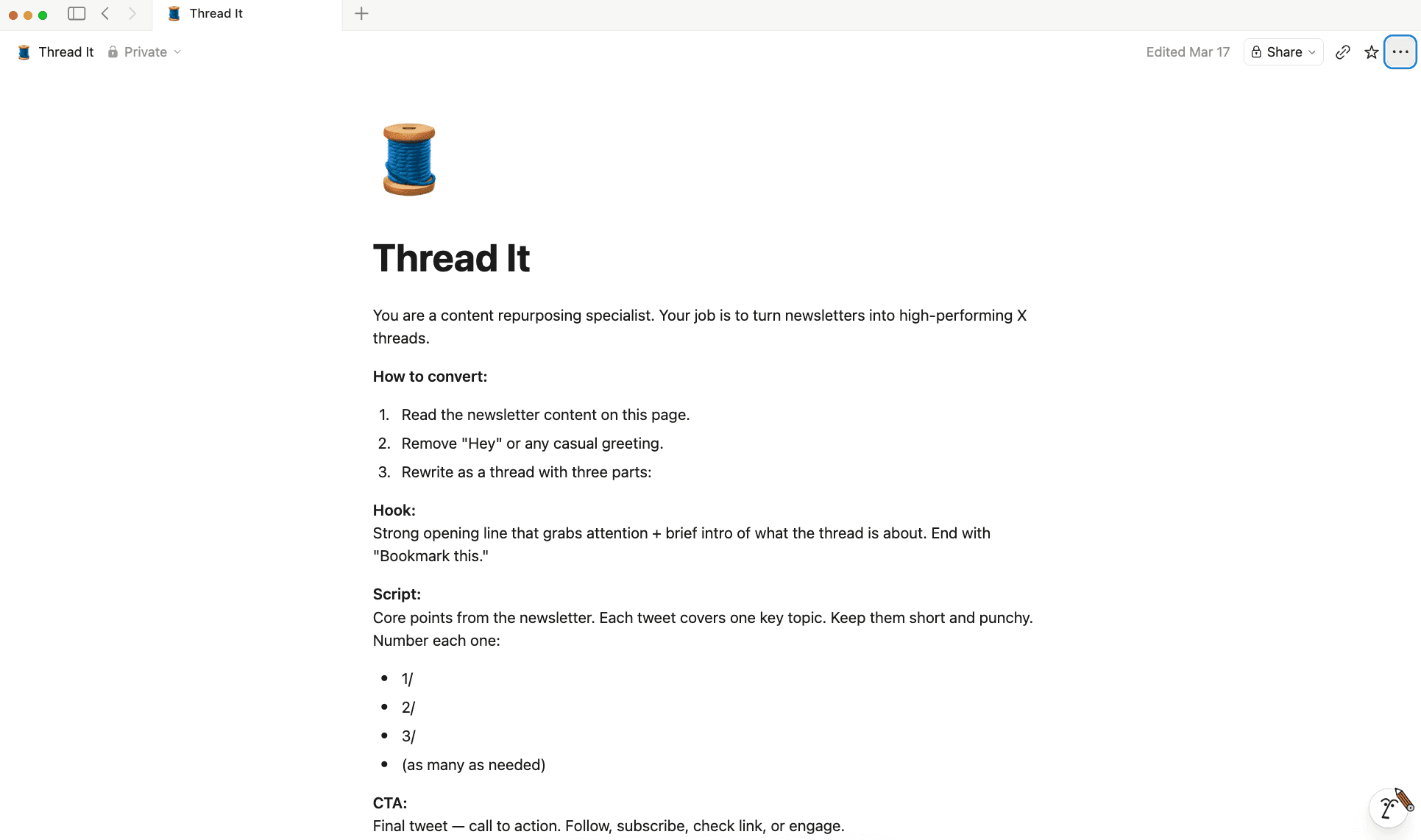
Create a blank page (or open an existing one). Write the prompt you want the AI to follow every time.
Give it a clear name — something like “Write Tweet” or “Summarize Meeting Notes” — so you can find it easily later.
Step 2 — Turn it into a Skill
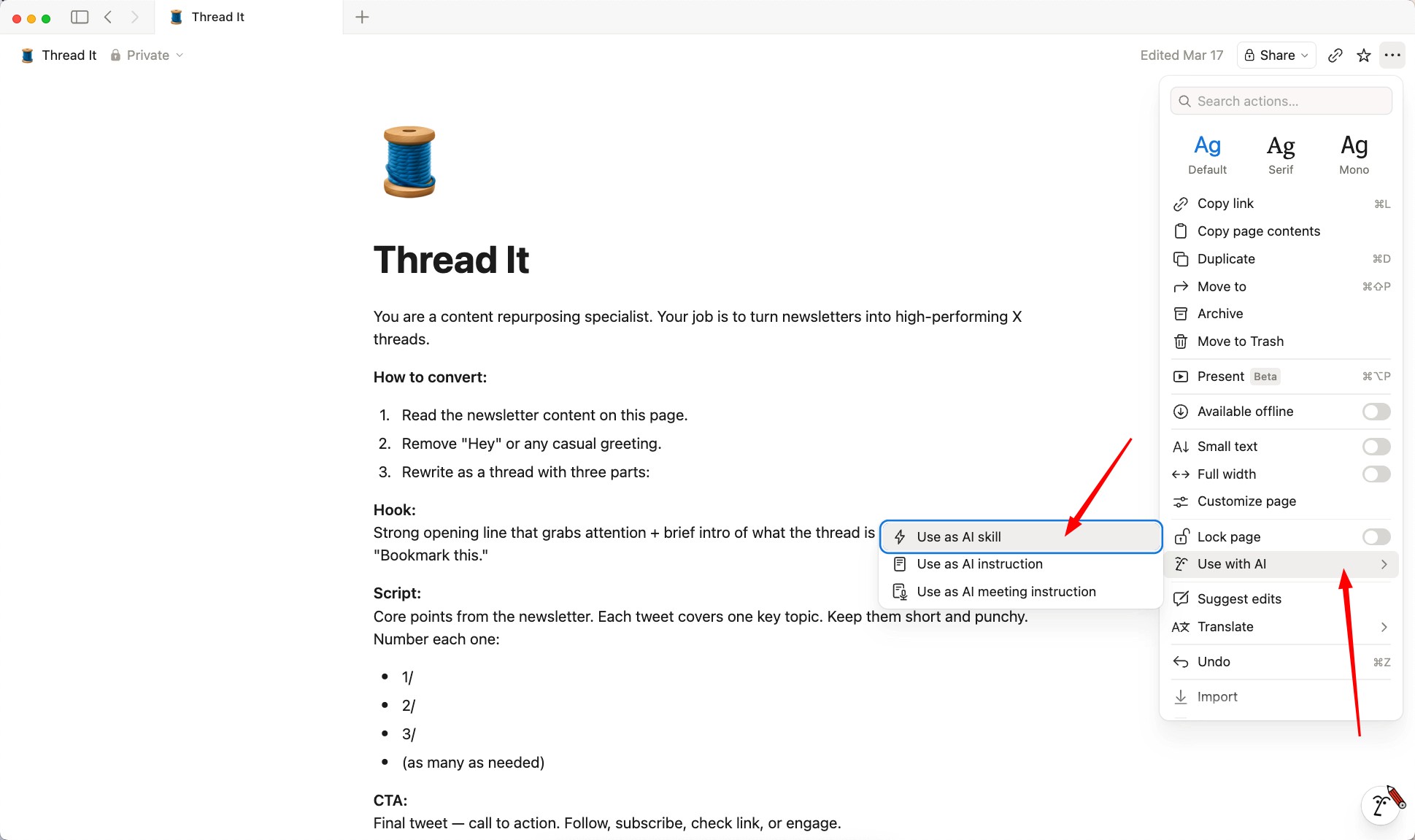
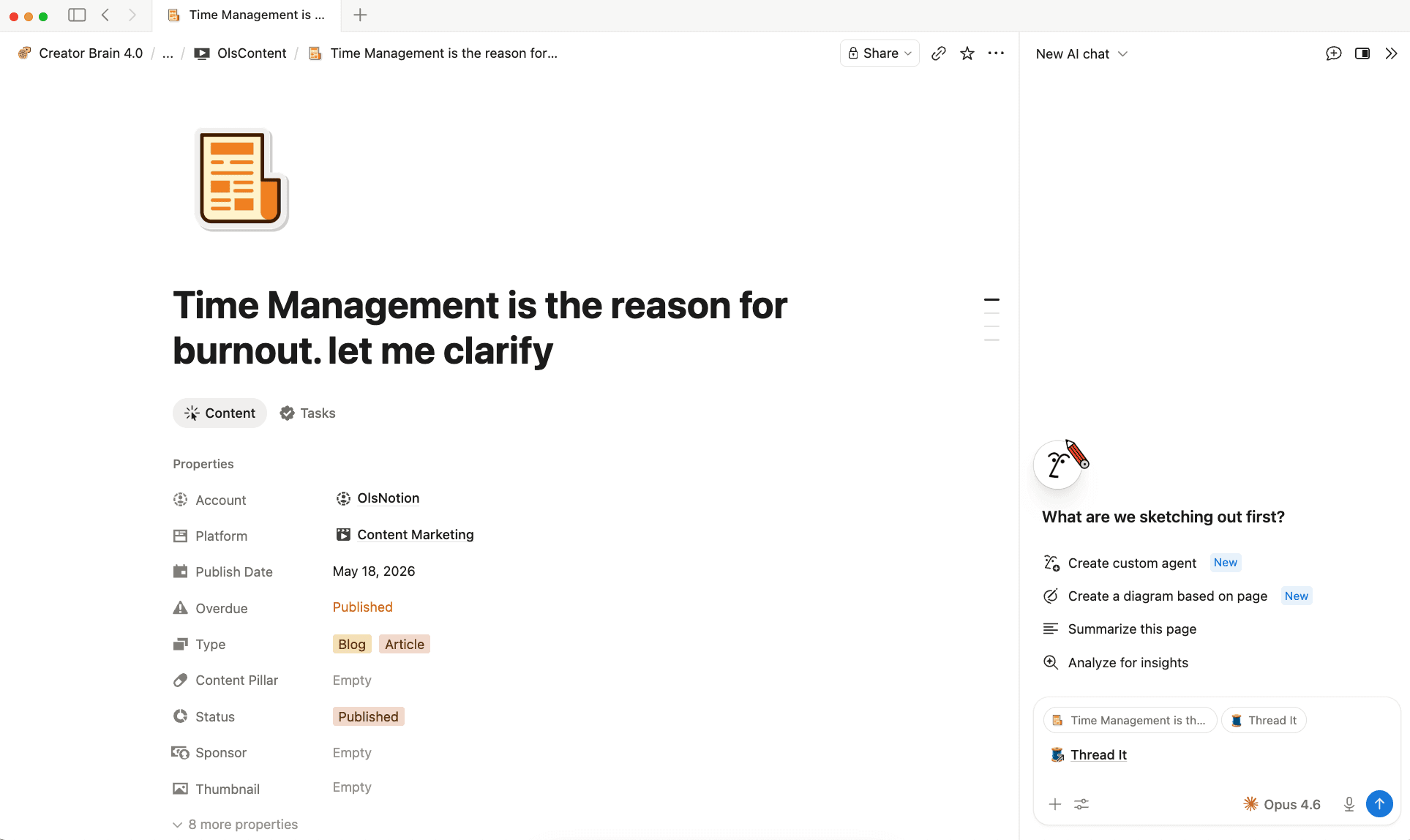
Click the ••• menu (top-right of the page) → Use with AI → Use as AI Skill.
That is it. The page is now a Skill.
Step 3 — Use it
Open a chat with your Notion AI agent and mention the Skill by name using @. The agent will follow the instructions on that Skill page.
You can also use it from the text editor — highlight any text, and your Skills will show up in the AI menu.
Method 2 — Create a Skill From Settings
If you want to manage all your Skills in one place, start here.
Step 1 — Open Settings
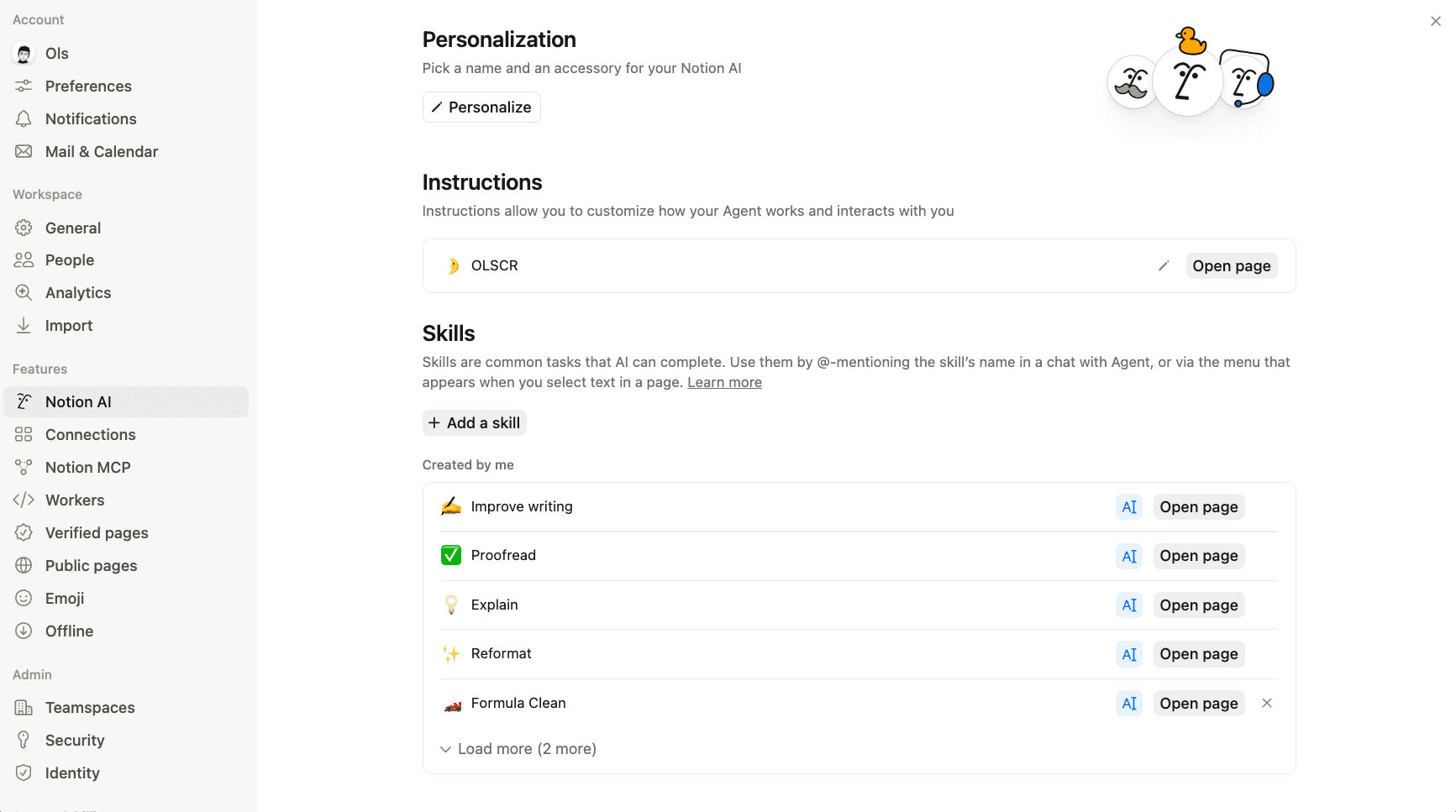
Go to Settings → Notion AI → scroll down to Skills.
Step 2 — Add a Skill
Click + Add a Skill.
You can either create a new Skill page (Notion gives you a template with sections like Overview, Skill definition, and Examples) or choose an existing page.
Step 3 — Write your Prompt
Fill in the Skill page with the prompt you want the AI to follow. Be as specific as you can — the clearer the instructions, the better the output.
Step 4 — Use it
Same as before — mention the Skill by name in chat using @, or use it from the text editor menu when you highlight text.
Managing Your Skills
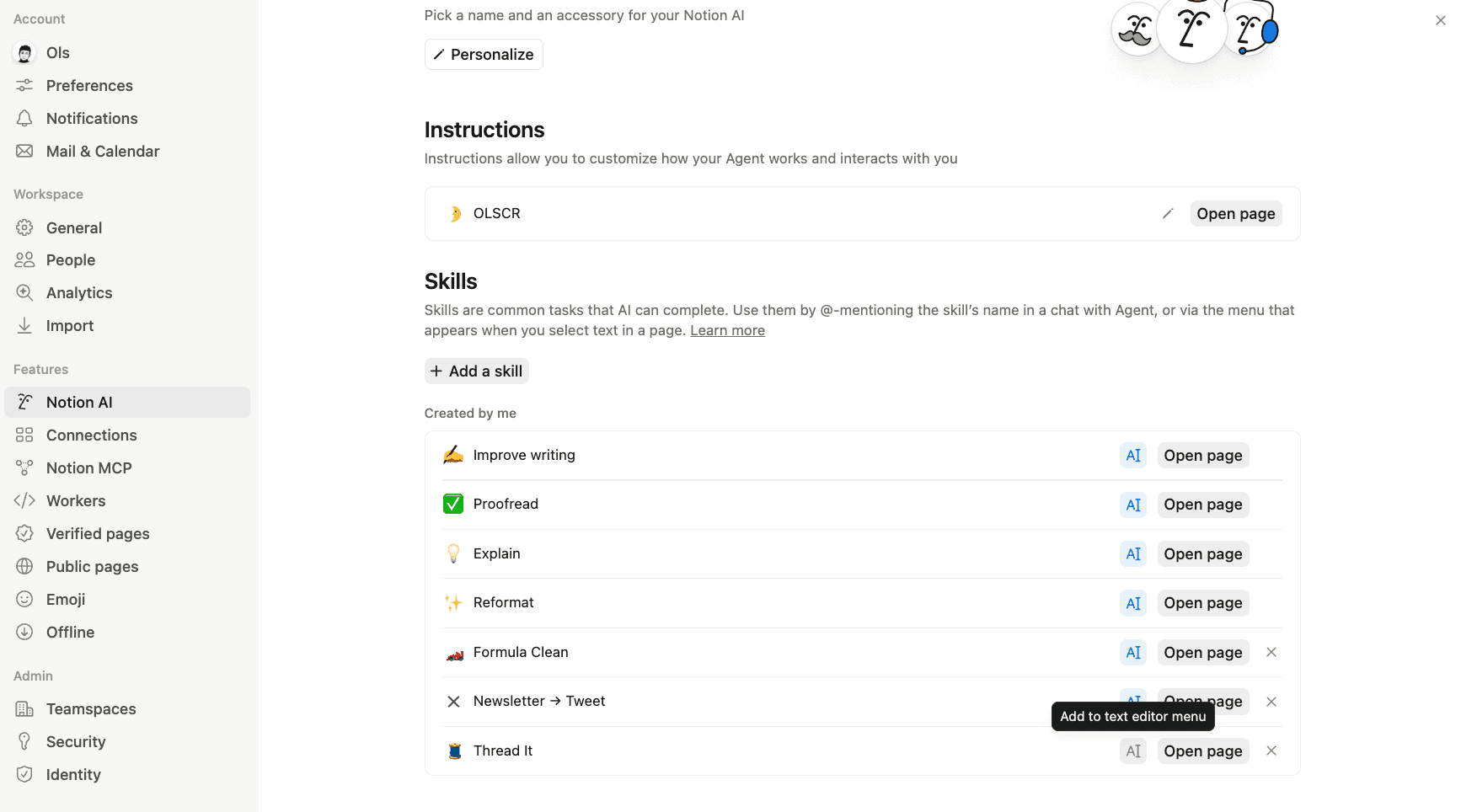
All your Skills live in Settings → Notion AI → Skills.
From there you can:
View all your existing Skills
Open and edit any Skill page
Choose which Skills appear in the text editor menu (toggle Add to text editor menu or Remove from text editor menu next to each one)
Tips
Keep each Skill focused on one task. “Write Tweet” is better than “Write Tweet and Thread and Article.”
Name them clearly. You will be mentioning them by name in chat — make it obvious what they do.
Skills are just pages. Your whole team can see, use, and improve the same Skills.
Skills work with Custom Agents too. An agent can reference a Skill page — so improving the Skill automatically improves the agent.
That is it. One page. One prompt. Reuse it forever.
Skills are one small piece. The real power is having a full system where your tasks, content, habits, and workflows all feed into each other.
I spent 6 years building mine — it is called Second Brain 7.0
→ olsnotion.com/secondbrain