Notion
Notion
5 Notion Formula Filters That Normal Filters Cannot Do
5 Notion Formula Filters That Normal Filters Cannot Do
5 Notion Formula Filters That Normal Filters Cannot Do
5 Notion Formula Filters That Normal Filters Cannot Do

Five filters Notion cannot build on its own
Notion filters are good at one thing. Comparing a row against a fixed value.
Is the status Done. Is the date before today. Is this checkbox ticked. Fine.
But the moment you want to compare a row against the other rows, you hit a wall. Show me duplicates. Show me only the newest note in each topic. Show me projects whose dates clash. Show me the top 3.
Notion cannot do any of that with a filter, because a filter never looks sideways.
So you do it with a formula instead. Here are the five I actually use.
Before you start

All five work the same way. You add a Formula property that returns true or false, then you filter the view to show rows where that property is checked.
That is the whole trick. The formula does the thinking, the filter just reads the answer.
One more thing. The first filter works on its own, but the other four compare a row against other rows, so the formula needs a way to reach them. That means a relation.
In my templates every database connects to a shared hub page, and the hub points back. So a note can reach every other note through it. A group database with an inverse relation works the same way, and a self-relation works too as long as the right rows are actually linked.
⚠️ Read this before you copy anything. In the formulas below you will see names like
Reflection Pulse,Grind Pulse,Gather PulseandTopic. Those are my relation properties. They will not exist in your database.Wherever you see one, replace it with your own relation property, the one that links these rows to whatever page or database they all share. And replace the name after it (
Resources,Projects,Notes,Shows) with the property on that shared page that points back to your rows.If you paste the formula as it is, it will not work. Every formula below has a comment showing you exactly which two names to change.
1. Past week, the one that is actually a week

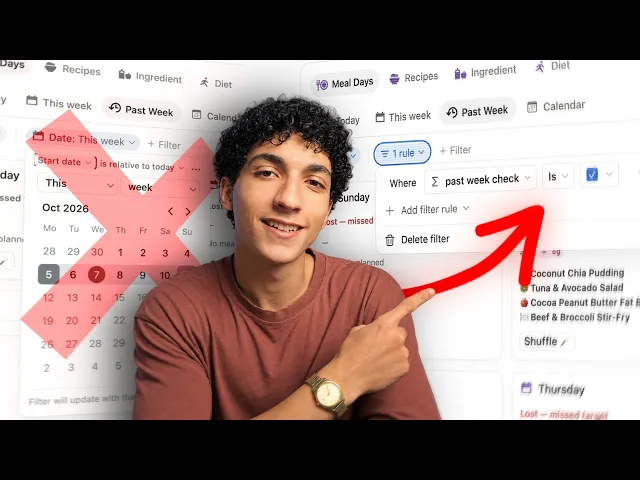
The problem. Notion has a past week filter built in, and it lies to you a little. It is a rolling window, so on a Wednesday it gives you last Wednesday to today. That is seven days, sure, but it mixes this week with last week, and when you are doing a weekly review that is useless.
What this does. Shows last Monday through Sunday. A real calendar week, no matter what day you open it.
How it works. Find this Monday, step back seven days to get last Monday, then keep the rows that are on or after last Monday and before this Monday. The before is important, because it handles dates that carry a time.
Make a formula property called Past Week Check. This example uses a date property called Start Date.
Then filter the view to Past Week Check is checked.
If your week starts on Sunday, use this one instead. Same thing, Sunday through Saturday.
2. Find your duplicates

The problem. You can filter for a duplicate you already know about. But you cannot ask Notion to find the ones you do not know about, because a filter cannot compare a row against every other row.
I had the same Mark Cuban video saved twice in my Resources database and had no idea.
What this does. Flags every resource whose link appears more than once. Empty links are ignored.
How it works. Save this row's link as me. Go through the hub, grab the links of every resource, keep the ones equal to me, and count them. Every row matches itself, so a count above one means there is a twin somewhere.
Filter to Duplicate is checked.
Formula property called Duplicate.
⚠️ Change these two names.
Reflection Pulseis my relation property, the one linking every resource to one shared page. Put your own relation there.Resourcesis the property on that shared page pointing back at the resources. Put yours there. Andlinkis the property you are checking for duplicates, so swap that for whatever you are comparing.
let(
  me, prop("link"),  /* <-- the property you are checking for duplicates */
  not empty(me) and
  prop("Reflection Pulse")  /* <-- YOUR relation to the shared page */
    .first().prop("Resources")  /* <-- the property on that page pointing back here */
    .map(current.prop("link"))  /*
One warning: it compares exact values, so the same page saved with a tracking parameter on the end will not match.
3. Only the newest row in each group

The problem. Sorting by date puts the newest first, which looks like it solved the problem until you scroll. Everything old is still sitting there. And sorting is global, so it cannot give you the newest one per topic.
What this does. Keeps the newest note in each topic and hides the rest.
How it works. Turn this note's date into a timestamp. Turn every note in the topic into timestamps too, take the biggest one, and check if it is yours.
Filter to Latest Topic is checked.
Formula property called Latest Topic.
⚠️ Change these two names.
Topicis my relation property, the one grouping the notes. Put your own relation there.Notesis the property on the topic page pointing back at its notes. Put yours there.Capturedis just my date property, so swap that for yours.Your group has to be a relation, not a select. A select cannot hand the formula a list of the other notes, so this will not work with one.
let(
  mine, prop("Captured").timestamp(),  /* <-- your date property */
  latest, prop("Topic")  /* <-- YOUR relation to the group */
    .first().prop("Notes")  /* <-- the property on the group pointing back here */
    .map(current.prop("Captured").timestamp()).max(),  /*
One thing to know: if two notes share the exact same timestamp, both show up.
4. Catch projects that clash

The problem. A date filter compares against a fixed date. Before today, after January. It has no idea that these two projects are both running the same fortnight and you have quietly committed yourself twice.
What this does. Flags any project whose start-to-end window overlaps at least one other project.
How it works. Two ranges overlap when this one starts on or before the other ends, and ends on or after the other starts. That is the whole rule. Count the projects that match, and since this project always matches itself, more than one means a real clash.
Formula property called Overlap.
⚠️ Change these two names.
Grind Pulseis my relation property, the one linking every project to one shared page. Put your own relation there.Projectsis the property on that shared page pointing back at the projects. Put yours there.Start DateandEnd Dateare my two date properties, so swap those for yours everywhere they appear.Every project has to actually be linked to that shared page, or it will not be counted.
let(
  s, prop("Start Date"),  /* <-- your start date */
  e, prop("End Date"),    /* <-- your end date */
  not empty(s) and not empty(e)
  and prop("Grind Pulse")  /* <-- YOUR relation to the shared page */
    .first().prop("Projects")  /*
Filter to Overlap is checked.
Both ends are inclusive, so two projects that just touch on a single day count as overlapping. And if you have years of finished projects in there, narrow the view to active ones first or you will get a wall of ancient overlaps.
5. A top 3 that updates itself

The problem. You can sort by a number and see the top three at the top. But a filter cannot hide everything below them, because the cutoff keeps moving. Today third place is 12 episodes, next week it is 20.
What this does. Shows the top three score levels, with gold, silver and bronze if you want them.
The example is podcast shows ranked by how many episodes I actually finished.
Step 1: count the finished ones
Formula property called Listened Count.
Step 2: work out the podium
This is the clever bit. Instead of trying to find the cutoff, you count how many distinct scores are above yours. If fewer than three beat you, you are on the podium.
Formula property called Podium.
⚠️ Change these two names.
Gather Pulseis my relation property, the one linking every show to one shared page. Put your own relation there.Showsis the property on that shared page pointing back at the shows. Put yours there.Listened Countis the formula from step 1, so use whatever you named yours.Same two names appear again in the medal formula below. Change them there too.
let(
  mine, prop("Listened Count"),  /* <-- your number from step 1 */
  beat, prop("Gather Pulse")  /* <-- YOUR relation to the shared page */
    .first().prop("Shows")  /* <-- the property on that page pointing back here */
    .map(current.prop("Listened Count"))  /*
Filter to Podium is checked. The mine > 0 keeps out shows you have never listened to.
Step 3: the medals
Optional, but it is the fun part. A text formula property called Rank.
let(
  mine, prop("Listened Count"),  /* <-- your number from step 1 */
  beat, prop("Gather Pulse")  /* <-- YOUR relation to the shared page */
    .first().prop("Shows")  /* <-- the property on that page pointing back here */
    .map(current.prop("Listened Count"))  /*
Because of unique(), tied scores share a medal and count as one level. So you might see four rows on a three-place podium, which is correct, just worth knowing.
To reuse this anywhere, swap Listened Count in both formulas for any number you track. Money, workouts, finished tasks. Change the 3 for a different top N.
One pattern, five uses
Look at the five again and they are all doing the same thing.
Take something about this row. Reach through a relation to get the same thing from every other row. Compare, count, and return true or false.
That is it. Once that clicks, you stop asking whether Notion can filter something and start asking what you need to compare.
And look, you can absolutely build your own system out of formulas like these. I did. It took me four years and most of my weekends, and I am still finding things I would do differently.

If you would rather skip that part, that is what SB7 is. My Notion second brain, built on this exact kind of thinking, with the formulas already written and the automations already running. Over 150,000 people have downloaded my templates, and SB7 is the one I open every single morning.
→ Get SB7
Five filters Notion cannot build on its own
Notion filters are good at one thing. Comparing a row against a fixed value.
Is the status Done. Is the date before today. Is this checkbox ticked. Fine.
But the moment you want to compare a row against the other rows, you hit a wall. Show me duplicates. Show me only the newest note in each topic. Show me projects whose dates clash. Show me the top 3.
Notion cannot do any of that with a filter, because a filter never looks sideways.
So you do it with a formula instead. Here are the five I actually use.
Before you start
All five work the same way. You add a Formula property that returns true or false, then you filter the view to show rows where that property is checked.
That is the whole trick. The formula does the thinking, the filter just reads the answer.
One more thing. The first filter works on its own, but the other four compare a row against other rows, so the formula needs a way to reach them. That means a relation.
In my templates every database connects to a shared hub page, and the hub points back. So a note can reach every other note through it. A group database with an inverse relation works the same way, and a self-relation works too as long as the right rows are actually linked.
⚠️ Read this before you copy anything. In the formulas below you will see names like
Reflection Pulse,Grind Pulse,Gather PulseandTopic. Those are my relation properties. They will not exist in your database.Wherever you see one, replace it with your own relation property, the one that links these rows to whatever page or database they all share. And replace the name after it (
Resources,Projects,Notes,Shows) with the property on that shared page that points back to your rows.If you paste the formula as it is, it will not work. Every formula below has a comment showing you exactly which two names to change.
1. Past week, the one that is actually a week
The problem. Notion has a past week filter built in, and it lies to you a little. It is a rolling window, so on a Wednesday it gives you last Wednesday to today. That is seven days, sure, but it mixes this week with last week, and when you are doing a weekly review that is useless.
What this does. Shows last Monday through Sunday. A real calendar week, no matter what day you open it.
How it works. Find this Monday, step back seven days to get last Monday, then keep the rows that are on or after last Monday and before this Monday. The before is important, because it handles dates that carry a time.
Make a formula property called Past Week Check. This example uses a date property called Start Date.
Then filter the view to Past Week Check is checked.
If your week starts on Sunday, use this one instead. Same thing, Sunday through Saturday.
2. Find your duplicates
The problem. You can filter for a duplicate you already know about. But you cannot ask Notion to find the ones you do not know about, because a filter cannot compare a row against every other row.
I had the same Mark Cuban video saved twice in my Resources database and had no idea.
What this does. Flags every resource whose link appears more than once. Empty links are ignored.
How it works. Save this row's link as me. Go through the hub, grab the links of every resource, keep the ones equal to me, and count them. Every row matches itself, so a count above one means there is a twin somewhere.
Filter to Duplicate is checked.
Formula property called Duplicate.
⚠️ Change these two names.
Reflection Pulseis my relation property, the one linking every resource to one shared page. Put your own relation there.Resourcesis the property on that shared page pointing back at the resources. Put yours there. Andlinkis the property you are checking for duplicates, so swap that for whatever you are comparing.
let(
  me, prop("link"),  /* <-- the property you are checking for duplicates */
  not empty(me) and
  prop("Reflection Pulse")  /* <-- YOUR relation to the shared page */
    .first().prop("Resources")  /* <-- the property on that page pointing back here */
    .map(current.prop("link"))  /*
One warning: it compares exact values, so the same page saved with a tracking parameter on the end will not match.
3. Only the newest row in each group
The problem. Sorting by date puts the newest first, which looks like it solved the problem until you scroll. Everything old is still sitting there. And sorting is global, so it cannot give you the newest one per topic.
What this does. Keeps the newest note in each topic and hides the rest.
How it works. Turn this note's date into a timestamp. Turn every note in the topic into timestamps too, take the biggest one, and check if it is yours.
Filter to Latest Topic is checked.
Formula property called Latest Topic.
⚠️ Change these two names.
Topicis my relation property, the one grouping the notes. Put your own relation there.Notesis the property on the topic page pointing back at its notes. Put yours there.Capturedis just my date property, so swap that for yours.Your group has to be a relation, not a select. A select cannot hand the formula a list of the other notes, so this will not work with one.
let(
  mine, prop("Captured").timestamp(),  /* <-- your date property */
  latest, prop("Topic")  /* <-- YOUR relation to the group */
    .first().prop("Notes")  /* <-- the property on the group pointing back here */
    .map(current.prop("Captured").timestamp()).max(),  /*
One thing to know: if two notes share the exact same timestamp, both show up.
4. Catch projects that clash
The problem. A date filter compares against a fixed date. Before today, after January. It has no idea that these two projects are both running the same fortnight and you have quietly committed yourself twice.
What this does. Flags any project whose start-to-end window overlaps at least one other project.
How it works. Two ranges overlap when this one starts on or before the other ends, and ends on or after the other starts. That is the whole rule. Count the projects that match, and since this project always matches itself, more than one means a real clash.
Formula property called Overlap.
⚠️ Change these two names.
Grind Pulseis my relation property, the one linking every project to one shared page. Put your own relation there.Projectsis the property on that shared page pointing back at the projects. Put yours there.Start DateandEnd Dateare my two date properties, so swap those for yours everywhere they appear.Every project has to actually be linked to that shared page, or it will not be counted.
let(
  s, prop("Start Date"),  /* <-- your start date */
  e, prop("End Date"),    /* <-- your end date */
  not empty(s) and not empty(e)
  and prop("Grind Pulse")  /* <-- YOUR relation to the shared page */
    .first().prop("Projects")  /*
Filter to Overlap is checked.
Both ends are inclusive, so two projects that just touch on a single day count as overlapping. And if you have years of finished projects in there, narrow the view to active ones first or you will get a wall of ancient overlaps.
5. A top 3 that updates itself
The problem. You can sort by a number and see the top three at the top. But a filter cannot hide everything below them, because the cutoff keeps moving. Today third place is 12 episodes, next week it is 20.
What this does. Shows the top three score levels, with gold, silver and bronze if you want them.
The example is podcast shows ranked by how many episodes I actually finished.
Step 1: count the finished ones
Formula property called Listened Count.
Step 2: work out the podium
This is the clever bit. Instead of trying to find the cutoff, you count how many distinct scores are above yours. If fewer than three beat you, you are on the podium.
Formula property called Podium.
⚠️ Change these two names.
Gather Pulseis my relation property, the one linking every show to one shared page. Put your own relation there.Showsis the property on that shared page pointing back at the shows. Put yours there.Listened Countis the formula from step 1, so use whatever you named yours.Same two names appear again in the medal formula below. Change them there too.
let(
  mine, prop("Listened Count"),  /* <-- your number from step 1 */
  beat, prop("Gather Pulse")  /* <-- YOUR relation to the shared page */
    .first().prop("Shows")  /* <-- the property on that page pointing back here */
    .map(current.prop("Listened Count"))  /*
Filter to Podium is checked. The mine > 0 keeps out shows you have never listened to.
Step 3: the medals
Optional, but it is the fun part. A text formula property called Rank.
let(
  mine, prop("Listened Count"),  /* <-- your number from step 1 */
  beat, prop("Gather Pulse")  /* <-- YOUR relation to the shared page */
    .first().prop("Shows")  /* <-- the property on that page pointing back here */
    .map(current.prop("Listened Count"))  /*
Because of unique(), tied scores share a medal and count as one level. So you might see four rows on a three-place podium, which is correct, just worth knowing.
To reuse this anywhere, swap Listened Count in both formulas for any number you track. Money, workouts, finished tasks. Change the 3 for a different top N.
One pattern, five uses
Look at the five again and they are all doing the same thing.
Take something about this row. Reach through a relation to get the same thing from every other row. Compare, count, and return true or false.
That is it. Once that clicks, you stop asking whether Notion can filter something and start asking what you need to compare.
And look, you can absolutely build your own system out of formulas like these. I did. It took me four years and most of my weekends, and I am still finding things I would do differently.
If you would rather skip that part, that is what SB7 is. My Notion second brain, built on this exact kind of thinking, with the formulas already written and the automations already running. Over 150,000 people have downloaded my templates, and SB7 is the one I open every single morning.
→ Get SB7
Five filters Notion cannot build on its own
Notion filters are good at one thing. Comparing a row against a fixed value.
Is the status Done. Is the date before today. Is this checkbox ticked. Fine.
But the moment you want to compare a row against the other rows, you hit a wall. Show me duplicates. Show me only the newest note in each topic. Show me projects whose dates clash. Show me the top 3.
Notion cannot do any of that with a filter, because a filter never looks sideways.
So you do it with a formula instead. Here are the five I actually use.
Before you start
All five work the same way. You add a Formula property that returns true or false, then you filter the view to show rows where that property is checked.
That is the whole trick. The formula does the thinking, the filter just reads the answer.
One more thing. The first filter works on its own, but the other four compare a row against other rows, so the formula needs a way to reach them. That means a relation.
In my templates every database connects to a shared hub page, and the hub points back. So a note can reach every other note through it. A group database with an inverse relation works the same way, and a self-relation works too as long as the right rows are actually linked.
⚠️ Read this before you copy anything. In the formulas below you will see names like
Reflection Pulse,Grind Pulse,Gather PulseandTopic. Those are my relation properties. They will not exist in your database.Wherever you see one, replace it with your own relation property, the one that links these rows to whatever page or database they all share. And replace the name after it (
Resources,Projects,Notes,Shows) with the property on that shared page that points back to your rows.If you paste the formula as it is, it will not work. Every formula below has a comment showing you exactly which two names to change.
1. Past week, the one that is actually a week
The problem. Notion has a past week filter built in, and it lies to you a little. It is a rolling window, so on a Wednesday it gives you last Wednesday to today. That is seven days, sure, but it mixes this week with last week, and when you are doing a weekly review that is useless.
What this does. Shows last Monday through Sunday. A real calendar week, no matter what day you open it.
How it works. Find this Monday, step back seven days to get last Monday, then keep the rows that are on or after last Monday and before this Monday. The before is important, because it handles dates that carry a time.
Make a formula property called Past Week Check. This example uses a date property called Start Date.
Then filter the view to Past Week Check is checked.
If your week starts on Sunday, use this one instead. Same thing, Sunday through Saturday.
2. Find your duplicates
The problem. You can filter for a duplicate you already know about. But you cannot ask Notion to find the ones you do not know about, because a filter cannot compare a row against every other row.
I had the same Mark Cuban video saved twice in my Resources database and had no idea.
What this does. Flags every resource whose link appears more than once. Empty links are ignored.
How it works. Save this row's link as me. Go through the hub, grab the links of every resource, keep the ones equal to me, and count them. Every row matches itself, so a count above one means there is a twin somewhere.
Filter to Duplicate is checked.
Formula property called Duplicate.
⚠️ Change these two names.
Reflection Pulseis my relation property, the one linking every resource to one shared page. Put your own relation there.Resourcesis the property on that shared page pointing back at the resources. Put yours there. Andlinkis the property you are checking for duplicates, so swap that for whatever you are comparing.
let(
  me, prop("link"),  /* <-- the property you are checking for duplicates */
  not empty(me) and
  prop("Reflection Pulse")  /* <-- YOUR relation to the shared page */
    .first().prop("Resources")  /* <-- the property on that page pointing back here */
    .map(current.prop("link"))  /*
One warning: it compares exact values, so the same page saved with a tracking parameter on the end will not match.
3. Only the newest row in each group
The problem. Sorting by date puts the newest first, which looks like it solved the problem until you scroll. Everything old is still sitting there. And sorting is global, so it cannot give you the newest one per topic.
What this does. Keeps the newest note in each topic and hides the rest.
How it works. Turn this note's date into a timestamp. Turn every note in the topic into timestamps too, take the biggest one, and check if it is yours.
Filter to Latest Topic is checked.
Formula property called Latest Topic.
⚠️ Change these two names.
Topicis my relation property, the one grouping the notes. Put your own relation there.Notesis the property on the topic page pointing back at its notes. Put yours there.Capturedis just my date property, so swap that for yours.Your group has to be a relation, not a select. A select cannot hand the formula a list of the other notes, so this will not work with one.
let(
  mine, prop("Captured").timestamp(),  /* <-- your date property */
  latest, prop("Topic")  /* <-- YOUR relation to the group */
    .first().prop("Notes")  /* <-- the property on the group pointing back here */
    .map(current.prop("Captured").timestamp()).max(),  /*
One thing to know: if two notes share the exact same timestamp, both show up.
4. Catch projects that clash
The problem. A date filter compares against a fixed date. Before today, after January. It has no idea that these two projects are both running the same fortnight and you have quietly committed yourself twice.
What this does. Flags any project whose start-to-end window overlaps at least one other project.
How it works. Two ranges overlap when this one starts on or before the other ends, and ends on or after the other starts. That is the whole rule. Count the projects that match, and since this project always matches itself, more than one means a real clash.
Formula property called Overlap.
⚠️ Change these two names.
Grind Pulseis my relation property, the one linking every project to one shared page. Put your own relation there.Projectsis the property on that shared page pointing back at the projects. Put yours there.Start DateandEnd Dateare my two date properties, so swap those for yours everywhere they appear.Every project has to actually be linked to that shared page, or it will not be counted.
let(
  s, prop("Start Date"),  /* <-- your start date */
  e, prop("End Date"),    /* <-- your end date */
  not empty(s) and not empty(e)
  and prop("Grind Pulse")  /* <-- YOUR relation to the shared page */
    .first().prop("Projects")  /*
Filter to Overlap is checked.
Both ends are inclusive, so two projects that just touch on a single day count as overlapping. And if you have years of finished projects in there, narrow the view to active ones first or you will get a wall of ancient overlaps.
5. A top 3 that updates itself
The problem. You can sort by a number and see the top three at the top. But a filter cannot hide everything below them, because the cutoff keeps moving. Today third place is 12 episodes, next week it is 20.
What this does. Shows the top three score levels, with gold, silver and bronze if you want them.
The example is podcast shows ranked by how many episodes I actually finished.
Step 1: count the finished ones
Formula property called Listened Count.
Step 2: work out the podium
This is the clever bit. Instead of trying to find the cutoff, you count how many distinct scores are above yours. If fewer than three beat you, you are on the podium.
Formula property called Podium.
⚠️ Change these two names.
Gather Pulseis my relation property, the one linking every show to one shared page. Put your own relation there.Showsis the property on that shared page pointing back at the shows. Put yours there.Listened Countis the formula from step 1, so use whatever you named yours.Same two names appear again in the medal formula below. Change them there too.
let(
  mine, prop("Listened Count"),  /* <-- your number from step 1 */
  beat, prop("Gather Pulse")  /* <-- YOUR relation to the shared page */
    .first().prop("Shows")  /* <-- the property on that page pointing back here */
    .map(current.prop("Listened Count"))  /*
Filter to Podium is checked. The mine > 0 keeps out shows you have never listened to.
Step 3: the medals
Optional, but it is the fun part. A text formula property called Rank.
let(
  mine, prop("Listened Count"),  /* <-- your number from step 1 */
  beat, prop("Gather Pulse")  /* <-- YOUR relation to the shared page */
    .first().prop("Shows")  /* <-- the property on that page pointing back here */
    .map(current.prop("Listened Count"))  /*
Because of unique(), tied scores share a medal and count as one level. So you might see four rows on a three-place podium, which is correct, just worth knowing.
To reuse this anywhere, swap Listened Count in both formulas for any number you track. Money, workouts, finished tasks. Change the 3 for a different top N.
One pattern, five uses
Look at the five again and they are all doing the same thing.
Take something about this row. Reach through a relation to get the same thing from every other row. Compare, count, and return true or false.
That is it. Once that clicks, you stop asking whether Notion can filter something and start asking what you need to compare.
And look, you can absolutely build your own system out of formulas like these. I did. It took me four years and most of my weekends, and I am still finding things I would do differently.
If you would rather skip that part, that is what SB7 is. My Notion second brain, built on this exact kind of thinking, with the formulas already written and the automations already running. Over 150,000 people have downloaded my templates, and SB7 is the one I open every single morning.
→ Get SB7
Five filters Notion cannot build on its own
Notion filters are good at one thing. Comparing a row against a fixed value.
Is the status Done. Is the date before today. Is this checkbox ticked. Fine.
But the moment you want to compare a row against the other rows, you hit a wall. Show me duplicates. Show me only the newest note in each topic. Show me projects whose dates clash. Show me the top 3.
Notion cannot do any of that with a filter, because a filter never looks sideways.
So you do it with a formula instead. Here are the five I actually use.
Before you start
All five work the same way. You add a Formula property that returns true or false, then you filter the view to show rows where that property is checked.
That is the whole trick. The formula does the thinking, the filter just reads the answer.
One more thing. The first filter works on its own, but the other four compare a row against other rows, so the formula needs a way to reach them. That means a relation.
In my templates every database connects to a shared hub page, and the hub points back. So a note can reach every other note through it. A group database with an inverse relation works the same way, and a self-relation works too as long as the right rows are actually linked.
⚠️ Read this before you copy anything. In the formulas below you will see names like
Reflection Pulse,Grind Pulse,Gather PulseandTopic. Those are my relation properties. They will not exist in your database.Wherever you see one, replace it with your own relation property, the one that links these rows to whatever page or database they all share. And replace the name after it (
Resources,Projects,Notes,Shows) with the property on that shared page that points back to your rows.If you paste the formula as it is, it will not work. Every formula below has a comment showing you exactly which two names to change.
1. Past week, the one that is actually a week
The problem. Notion has a past week filter built in, and it lies to you a little. It is a rolling window, so on a Wednesday it gives you last Wednesday to today. That is seven days, sure, but it mixes this week with last week, and when you are doing a weekly review that is useless.
What this does. Shows last Monday through Sunday. A real calendar week, no matter what day you open it.
How it works. Find this Monday, step back seven days to get last Monday, then keep the rows that are on or after last Monday and before this Monday. The before is important, because it handles dates that carry a time.
Make a formula property called Past Week Check. This example uses a date property called Start Date.
Then filter the view to Past Week Check is checked.
If your week starts on Sunday, use this one instead. Same thing, Sunday through Saturday.
2. Find your duplicates
The problem. You can filter for a duplicate you already know about. But you cannot ask Notion to find the ones you do not know about, because a filter cannot compare a row against every other row.
I had the same Mark Cuban video saved twice in my Resources database and had no idea.
What this does. Flags every resource whose link appears more than once. Empty links are ignored.
How it works. Save this row's link as me. Go through the hub, grab the links of every resource, keep the ones equal to me, and count them. Every row matches itself, so a count above one means there is a twin somewhere.
Filter to Duplicate is checked.
Formula property called Duplicate.
⚠️ Change these two names.
Reflection Pulseis my relation property, the one linking every resource to one shared page. Put your own relation there.Resourcesis the property on that shared page pointing back at the resources. Put yours there. Andlinkis the property you are checking for duplicates, so swap that for whatever you are comparing.
let(
  me, prop("link"),  /* <-- the property you are checking for duplicates */
  not empty(me) and
  prop("Reflection Pulse")  /* <-- YOUR relation to the shared page */
    .first().prop("Resources")  /* <-- the property on that page pointing back here */
    .map(current.prop("link"))  /*
One warning: it compares exact values, so the same page saved with a tracking parameter on the end will not match.
3. Only the newest row in each group
The problem. Sorting by date puts the newest first, which looks like it solved the problem until you scroll. Everything old is still sitting there. And sorting is global, so it cannot give you the newest one per topic.
What this does. Keeps the newest note in each topic and hides the rest.
How it works. Turn this note's date into a timestamp. Turn every note in the topic into timestamps too, take the biggest one, and check if it is yours.
Filter to Latest Topic is checked.
Formula property called Latest Topic.
⚠️ Change these two names.
Topicis my relation property, the one grouping the notes. Put your own relation there.Notesis the property on the topic page pointing back at its notes. Put yours there.Capturedis just my date property, so swap that for yours.Your group has to be a relation, not a select. A select cannot hand the formula a list of the other notes, so this will not work with one.
let(
  mine, prop("Captured").timestamp(),  /* <-- your date property */
  latest, prop("Topic")  /* <-- YOUR relation to the group */
    .first().prop("Notes")  /* <-- the property on the group pointing back here */
    .map(current.prop("Captured").timestamp()).max(),  /*
One thing to know: if two notes share the exact same timestamp, both show up.
4. Catch projects that clash
The problem. A date filter compares against a fixed date. Before today, after January. It has no idea that these two projects are both running the same fortnight and you have quietly committed yourself twice.
What this does. Flags any project whose start-to-end window overlaps at least one other project.
How it works. Two ranges overlap when this one starts on or before the other ends, and ends on or after the other starts. That is the whole rule. Count the projects that match, and since this project always matches itself, more than one means a real clash.
Formula property called Overlap.
⚠️ Change these two names.
Grind Pulseis my relation property, the one linking every project to one shared page. Put your own relation there.Projectsis the property on that shared page pointing back at the projects. Put yours there.Start DateandEnd Dateare my two date properties, so swap those for yours everywhere they appear.Every project has to actually be linked to that shared page, or it will not be counted.
let(
  s, prop("Start Date"),  /* <-- your start date */
  e, prop("End Date"),    /* <-- your end date */
  not empty(s) and not empty(e)
  and prop("Grind Pulse")  /* <-- YOUR relation to the shared page */
    .first().prop("Projects")  /*
Filter to Overlap is checked.
Both ends are inclusive, so two projects that just touch on a single day count as overlapping. And if you have years of finished projects in there, narrow the view to active ones first or you will get a wall of ancient overlaps.
5. A top 3 that updates itself
The problem. You can sort by a number and see the top three at the top. But a filter cannot hide everything below them, because the cutoff keeps moving. Today third place is 12 episodes, next week it is 20.
What this does. Shows the top three score levels, with gold, silver and bronze if you want them.
The example is podcast shows ranked by how many episodes I actually finished.
Step 1: count the finished ones
Formula property called Listened Count.
Step 2: work out the podium
This is the clever bit. Instead of trying to find the cutoff, you count how many distinct scores are above yours. If fewer than three beat you, you are on the podium.
Formula property called Podium.
⚠️ Change these two names.
Gather Pulseis my relation property, the one linking every show to one shared page. Put your own relation there.Showsis the property on that shared page pointing back at the shows. Put yours there.Listened Countis the formula from step 1, so use whatever you named yours.Same two names appear again in the medal formula below. Change them there too.
let(
  mine, prop("Listened Count"),  /* <-- your number from step 1 */
  beat, prop("Gather Pulse")  /* <-- YOUR relation to the shared page */
    .first().prop("Shows")  /* <-- the property on that page pointing back here */
    .map(current.prop("Listened Count"))  /*
Filter to Podium is checked. The mine > 0 keeps out shows you have never listened to.
Step 3: the medals
Optional, but it is the fun part. A text formula property called Rank.
let(
  mine, prop("Listened Count"),  /* <-- your number from step 1 */
  beat, prop("Gather Pulse")  /* <-- YOUR relation to the shared page */
    .first().prop("Shows")  /* <-- the property on that page pointing back here */
    .map(current.prop("Listened Count"))  /*
Because of unique(), tied scores share a medal and count as one level. So you might see four rows on a three-place podium, which is correct, just worth knowing.
To reuse this anywhere, swap Listened Count in both formulas for any number you track. Money, workouts, finished tasks. Change the 3 for a different top N.
One pattern, five uses
Look at the five again and they are all doing the same thing.
Take something about this row. Reach through a relation to get the same thing from every other row. Compare, count, and return true or false.
That is it. Once that clicks, you stop asking whether Notion can filter something and start asking what you need to compare.
And look, you can absolutely build your own system out of formulas like these. I did. It took me four years and most of my weekends, and I am still finding things I would do differently.
If you would rather skip that part, that is what SB7 is. My Notion second brain, built on this exact kind of thinking, with the formulas already written and the automations already running. Over 150,000 people have downloaded my templates, and SB7 is the one I open every single morning.
→ Get SB7