When I started learning Notion in late 2019, I bought a course in Arabic — no English roadmap existed yet. It wasn't bad. Solid start. But looking back, if someone who'd already mastered Notion had handed me a clear path, it would have saved me years of trial and error.
So I built it myself. This is the Notion 2026 roadmap I wish I had when I started — the full path to master Notion, from Level 0 all the way to Level 22.
If you'd rather watch than read, the full 30-minute video is right here 👇
Otherwise, keep scrolling. Below is every level — what to learn, what to skip, and how to know you're done with it.
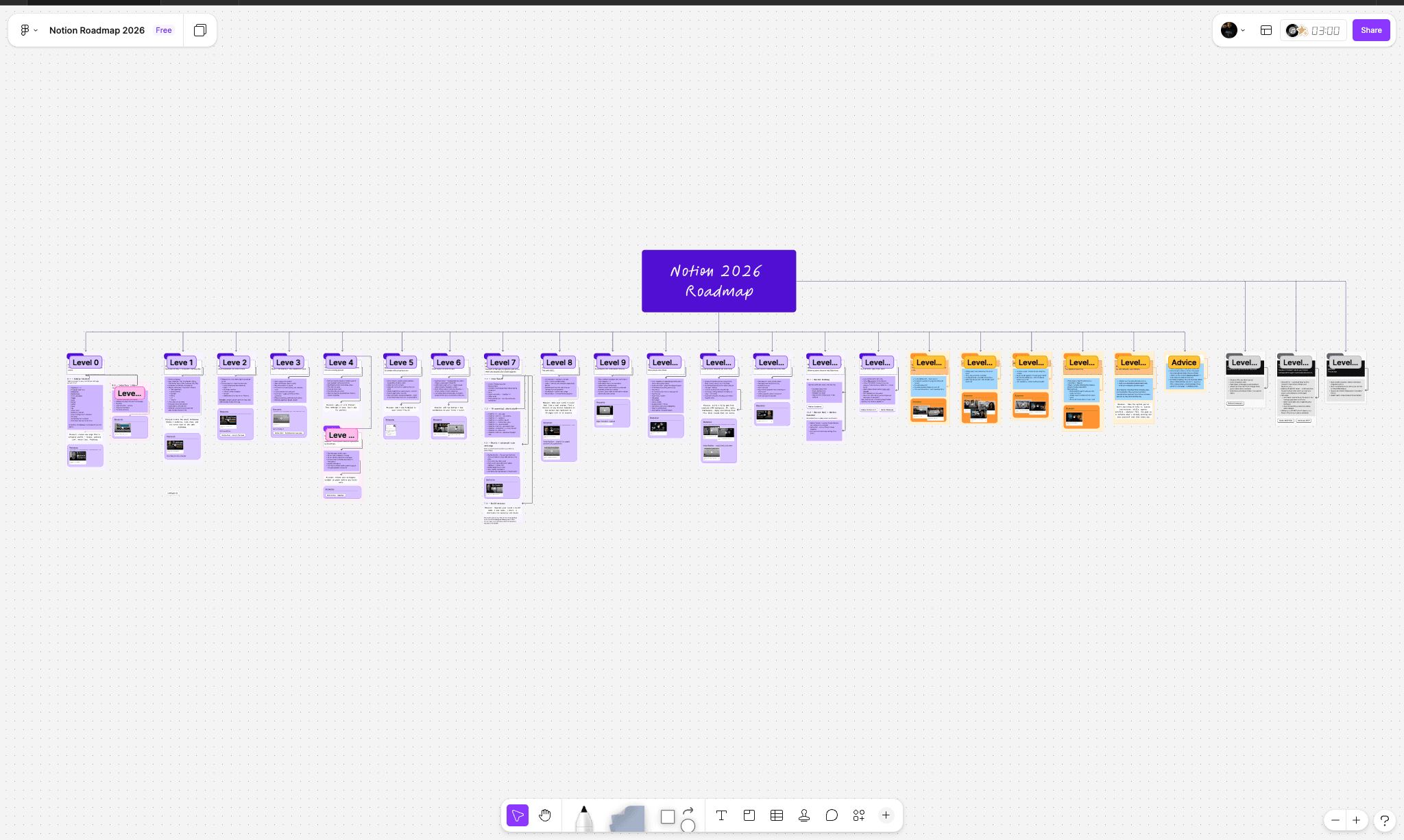
📌 And here's the visual roadmap on Figjam if you want to follow along: Open the Figjam roadmap →
Level 0 — Foundations
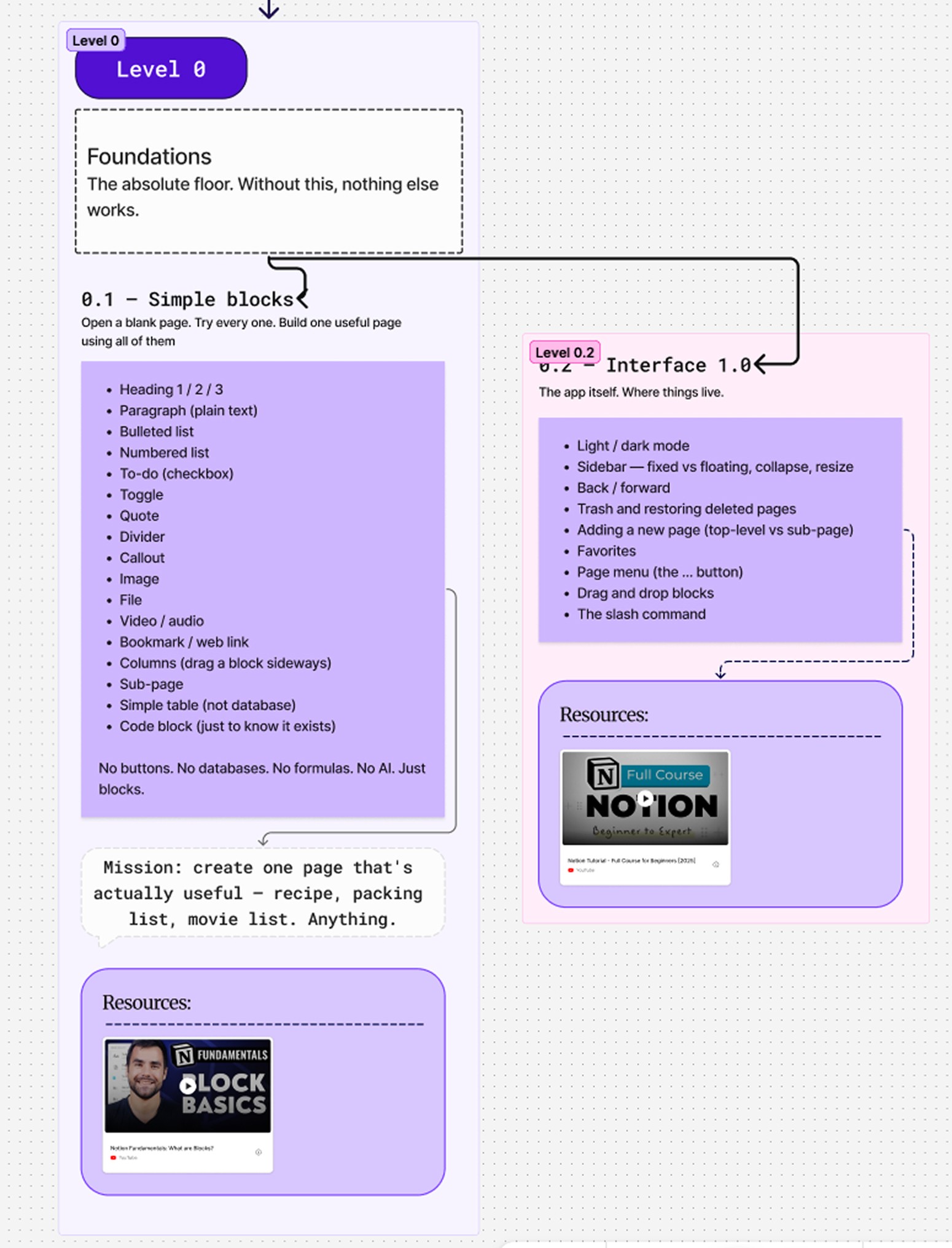
Every Notion build sits on two things: the blocks you write with, and the app you write inside. Skip this step and the rest of the roadmap will feel impossible. Take a few hours here and everything from Level 1 onward gets a lot easier.
0.1 — Simple blocks
The goal at this stage is to know what every block does without thinking about it. Spin up a blank page and walk through them one by one — headings, paragraphs, lists, to-dos, toggles, quotes, callouts, dividers, columns, simple tables, code blocks, sub-pages. Don't read about them. Drop them onto a page and play.
The exercise that makes this stick: pick one small thing from your life and rebuild it inside Notion using nothing but blocks. A weekly meal plan. A packing list for your next trip. A watchlist for the weekend. No databases, no formulas, no AI. The point isn't the page itself — it's that by the end of it you'll never have to stop and think "wait, how do I add a callout again?"
0.2 — Interface
Once the blocks click, get comfortable with the app around them. This is the part most tutorials race past, and it's also why most beginners feel lost two weeks in.
Spend twenty minutes poking at things. Flip between light and dark mode. Resize the sidebar, collapse it, try the floating mode. Open the three-dot menu on a page and read every option in there. Send a page to trash, then bring it back. Pin something to favorites. Drag a block from one place to another.
You're not memorizing anything. You're just teaching your hands where everything lives so the app stops feeling like a maze.
Level 1 — Databases and basic views
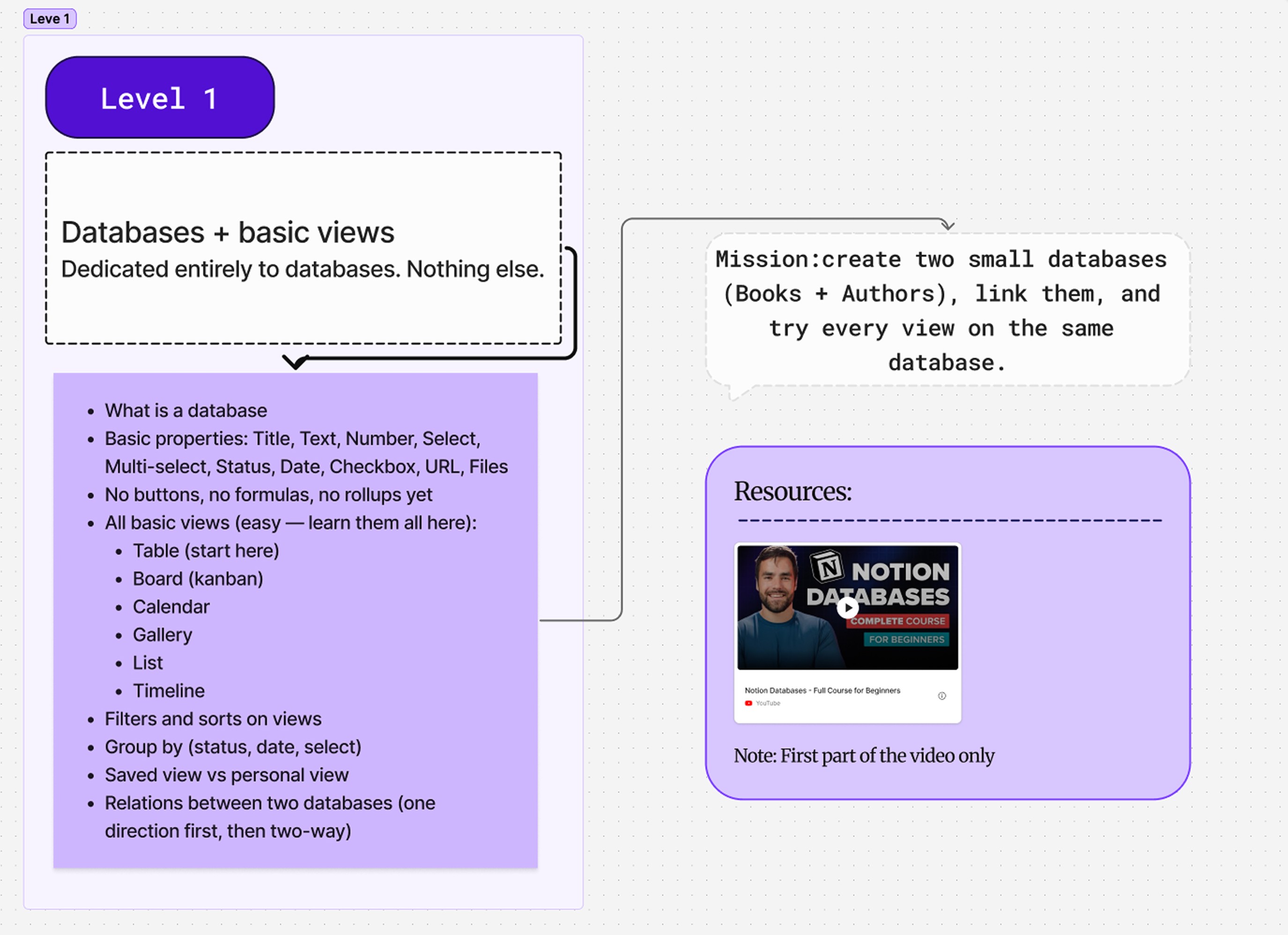
Level 1 is where Notion stops being a notes app and starts being something bigger. Everything from here on out leans on databases, so spend real time on this one.
A database in Notion is just a structured collection of pages. Each row is a page. Each column is a property. That's it. The magic isn't in the database itself — it's in the views you build on top of it.
Start with the basic property types: title, text, number, select, multi-select, status, date, checkbox, URL, and files. Don't touch buttons, formulas, rollups, or relations yet. Just these.
Then learn every basic view. Table is your home base — start there. Then board (the kanban one), calendar, gallery, list, and timeline. Open the same database in all six and feel how each one reframes the same data. Skip the dashboard view and charts for now — those belong in Level 7.
Once the views are familiar, get good at filters, sorts, and group-by. Group a task list by status. Filter a calendar to only show this week. Save a personal view that only you see, then save a shared view for the whole team. The difference matters more than it sounds.
Finish this level with two small databases that actually relate to each other. A Books database and an Authors database is the classic move — connect them with a relation, then play with filters and views on both sides.
For the lesson side, Thomas Frank has a full beginner database course that covers everything in this level cleanly.
Level 2 — Rollups and your first formulas
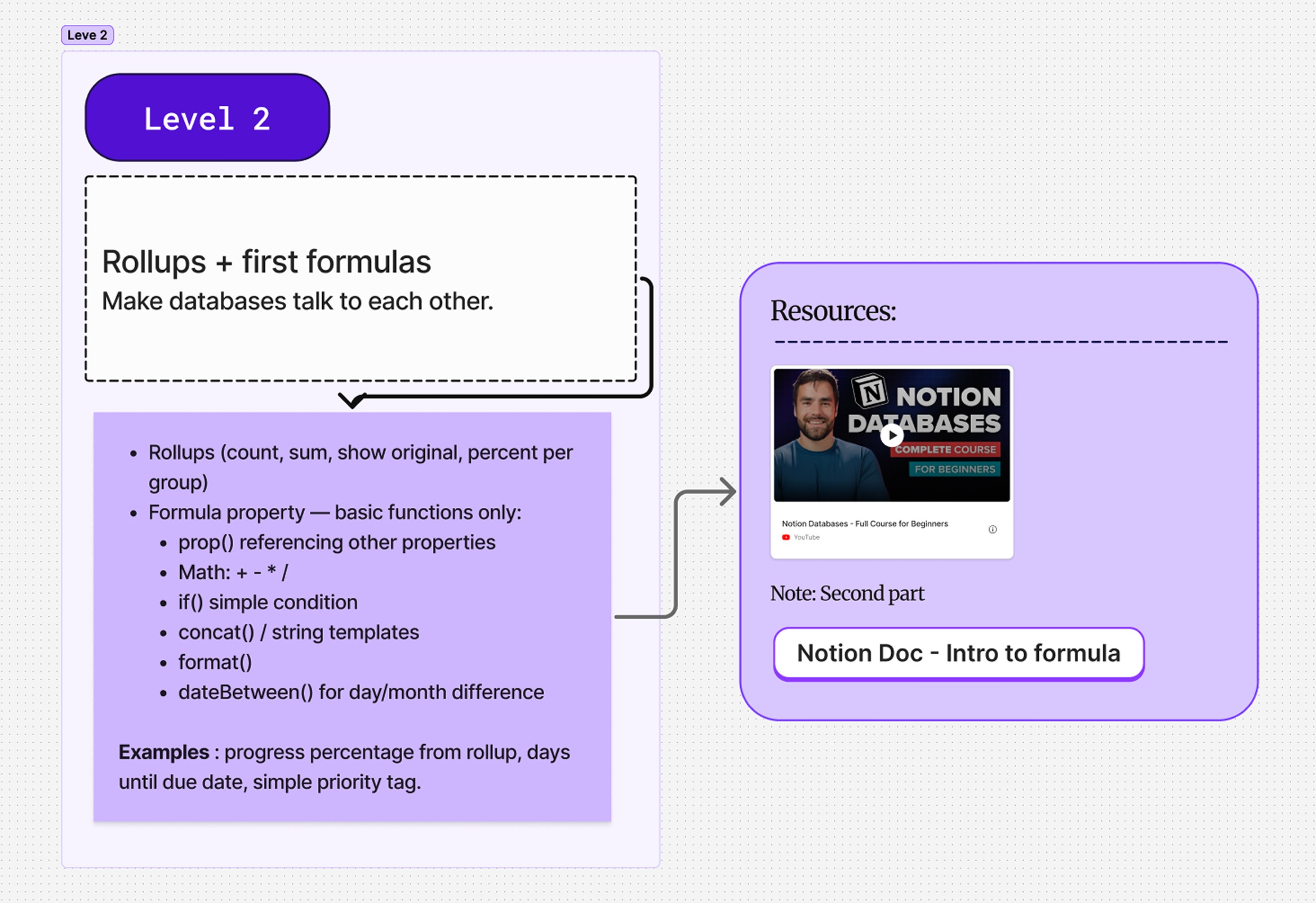
Now make your databases talk to each other.
Rollups let you pull data from a related database into the current one. Count how many tasks belong to a project. Sum the hours logged on a goal. Show a percentage complete per category. Anywhere you have a relation, a rollup adds a layer on top of it.
Then formulas. And here's the part most beginners get wrong: they panic the moment they see the formula editor. At this level, you don't need to. We're not touching the deep end yet.
Stick to six basics:
prop()to grab the value of another property+,-,*,/for plain mathif()for a single yes-or-no conditionconcat()to glue strings togetherformat()to turn numbers into stringsdateBetween()to count days between two dates
That's enough to build something real. A "days until due" countdown. A simple priority tag based on a date. A rough progress bar fed by a rollup. Pick one, build it, move on.
Don't try to master formulas here. The goal is just to lose your fear of the formula editor.
Level 3 — Sharing, members, comments
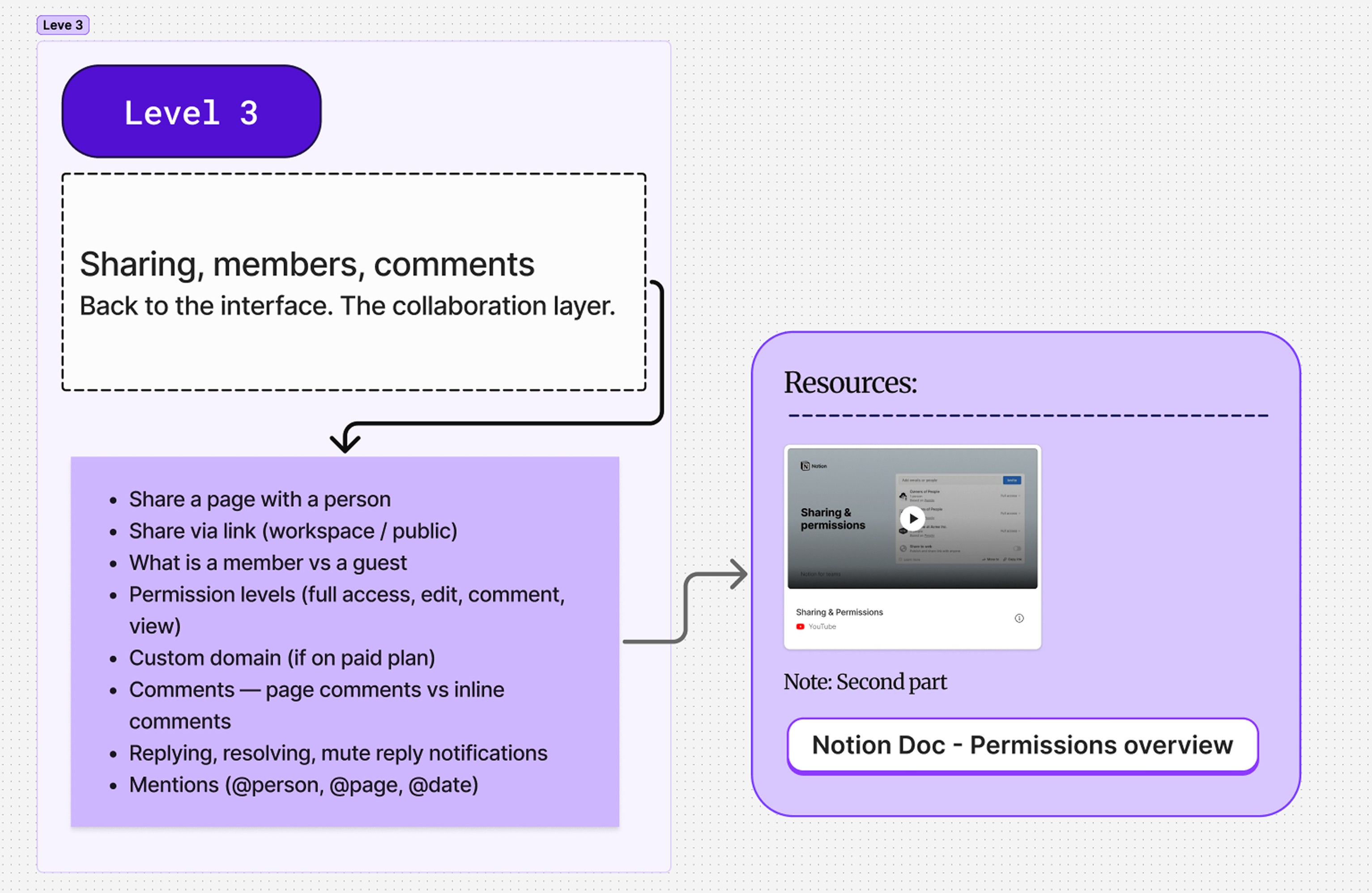
Level 3 is the collaboration layer. Even if you're a solo builder right now, learn it — the day you bring in a client or a teammate, you don't want to be googling permissions.
Get clear on who's who. The difference between a member and a guest. The four permission levels — full access, edit, comment, view — and what each one actually unlocks. The difference between sharing with one person, sharing via link to your whole workspace, and sharing publicly to the web.
Pick a page and share it with a friend or a second account. Try every permission level and see what they can and can't do. This sounds basic, but it's the fastest way to actually understand the model.
Then comments. Two kinds, both important.
A page-level comment lives at the bottom of a page — good for "this whole doc looks great." An inline comment is anchored to a specific block or piece of text — good for "this paragraph is wrong." Use both. Reply, mention people with @, and resolve threads when they're done. Mute reply notifications when a thread you don't care about explodes.
It's a small layer. You'll touch it every single day once your workspace has more than one person in it.
Level 4 — Your first real Notion system
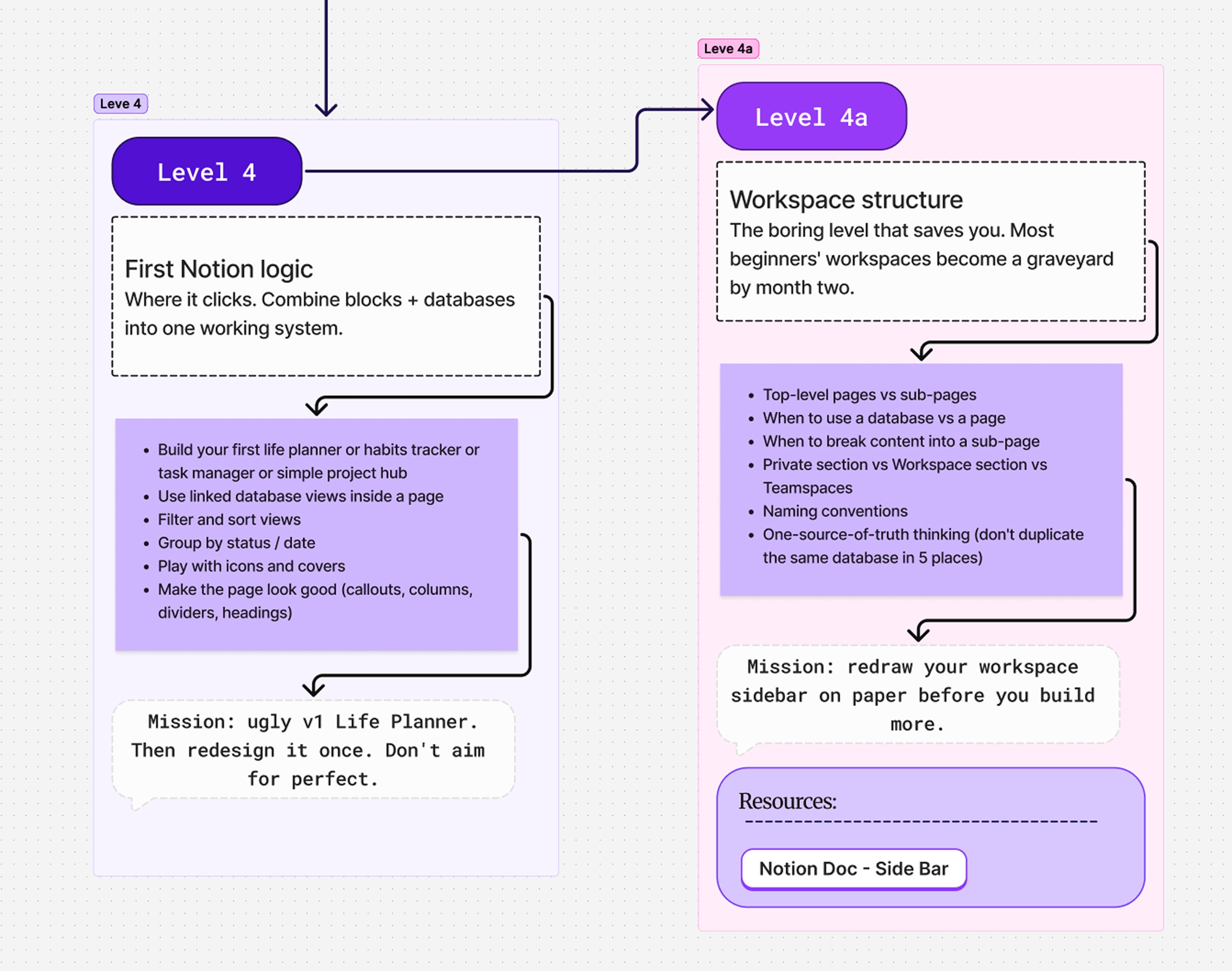
This is the level I love.
You take everything from the first three levels — blocks, databases, views, relations, basic formulas — and build one real thing. A task manager. A habit tracker. A project hub. A planner for your week. Whatever you'd actually use.
The trick most beginners miss: real Notion systems aren't one giant database sitting alone on a page. They're databases embedded everywhere as linked database views, each one filtered for the page it lives on. Your "Today" page shows tasks due today. Your project page shows tasks for that project. Same database, different lens.
Build the ugly version first. Don't reach for a beautiful template — make it functional, even if it looks rough. Then, only after it works, redesign it. Aesthetics come second. A pretty workspace you don't use is just a pretty graveyard.
By the end of this level, you should have one system you open every morning. That's the goal.
Level 4a — Workspace structure
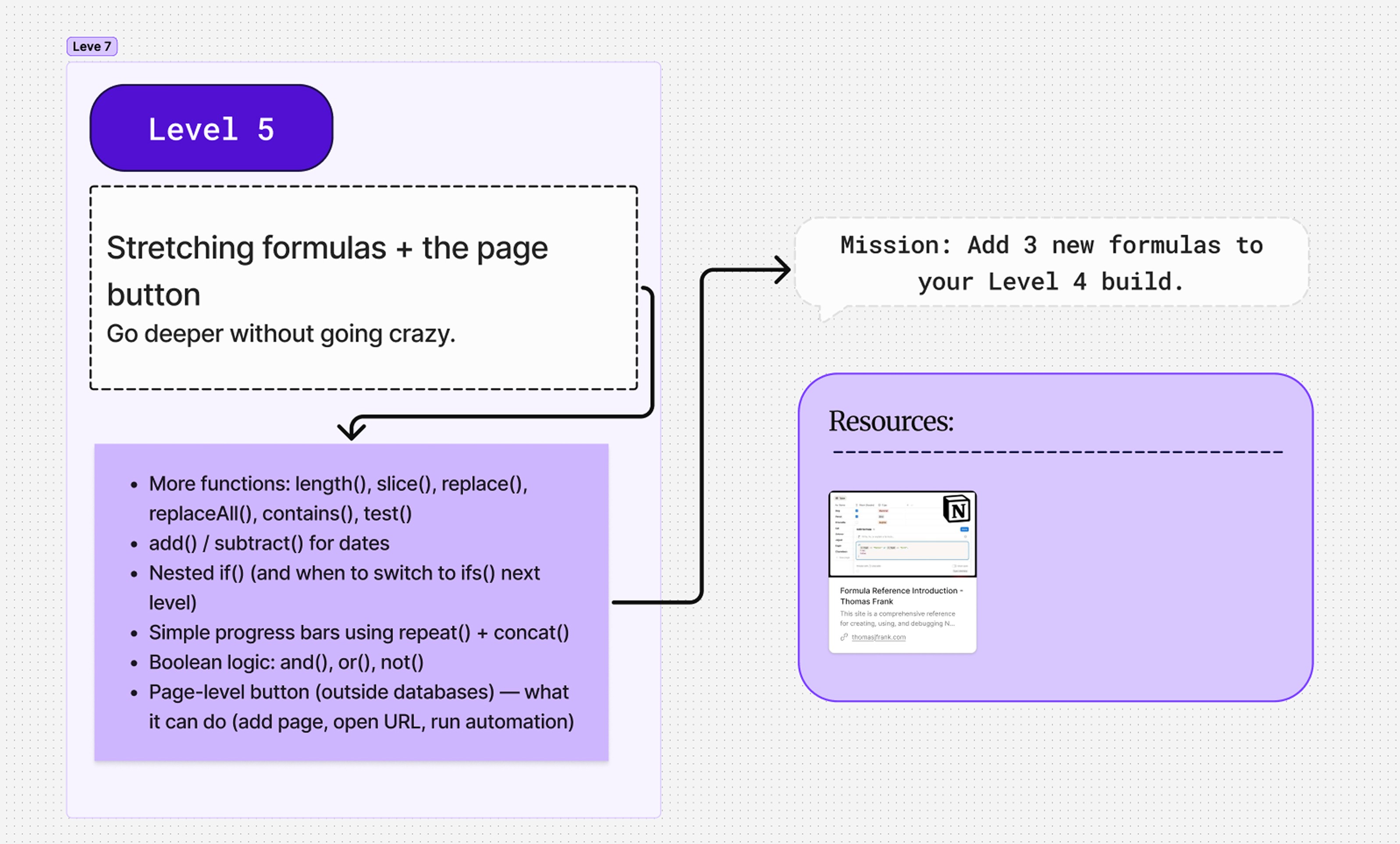
Level 4a is short, but it's the level that saves your future self.
Most workspaces become a graveyard by month two — duplicate databases, orphan pages, three versions of the same template. Not because Notion is bad, but because nobody taught the person building it how to lay things out.
A few things to internalize before you build more:
Top-level pages vs. sub-pages — when does something deserve to live in the sidebar vs. nested?
Database vs. plain page — is this a single document, or a collection of items?
Private section vs. workspace section vs. teamspaces — who actually needs to see this?
One source of truth — never duplicate the same database in five places. Always link.
Before you add anything new, sketch your workspace structure on paper. Top-level boxes, where each database lives, where the entry points are. Five minutes of drawing now saves five hours of cleanup later.
Level 5 — Stretching formulas and the page button
You've already broken the fear barrier with formulas. Now go a little deeper without going crazy.
New functions to add to your toolkit:
contains(),replace(),length()for working with stringsslice()for grabbing parts of a stringNested
if()— and the moment to switch toifs()insteadrepeat()andconcat()together to draw a simple progress barBoolean logic with
and(),or(), andnot()
Then the page-level button — the button block you can drop on any page (not just inside a database). It can open a URL, add a new page somewhere, set a property, or fire an automation. Tiny block, ridiculously useful once you know it exists.
The mission for this level: open your Level 4 build and add three new formulas to it. Not random ones — three formulas you actually need. If you can't think of three, you're not using the system enough yet.
Level 6 — Your first automations
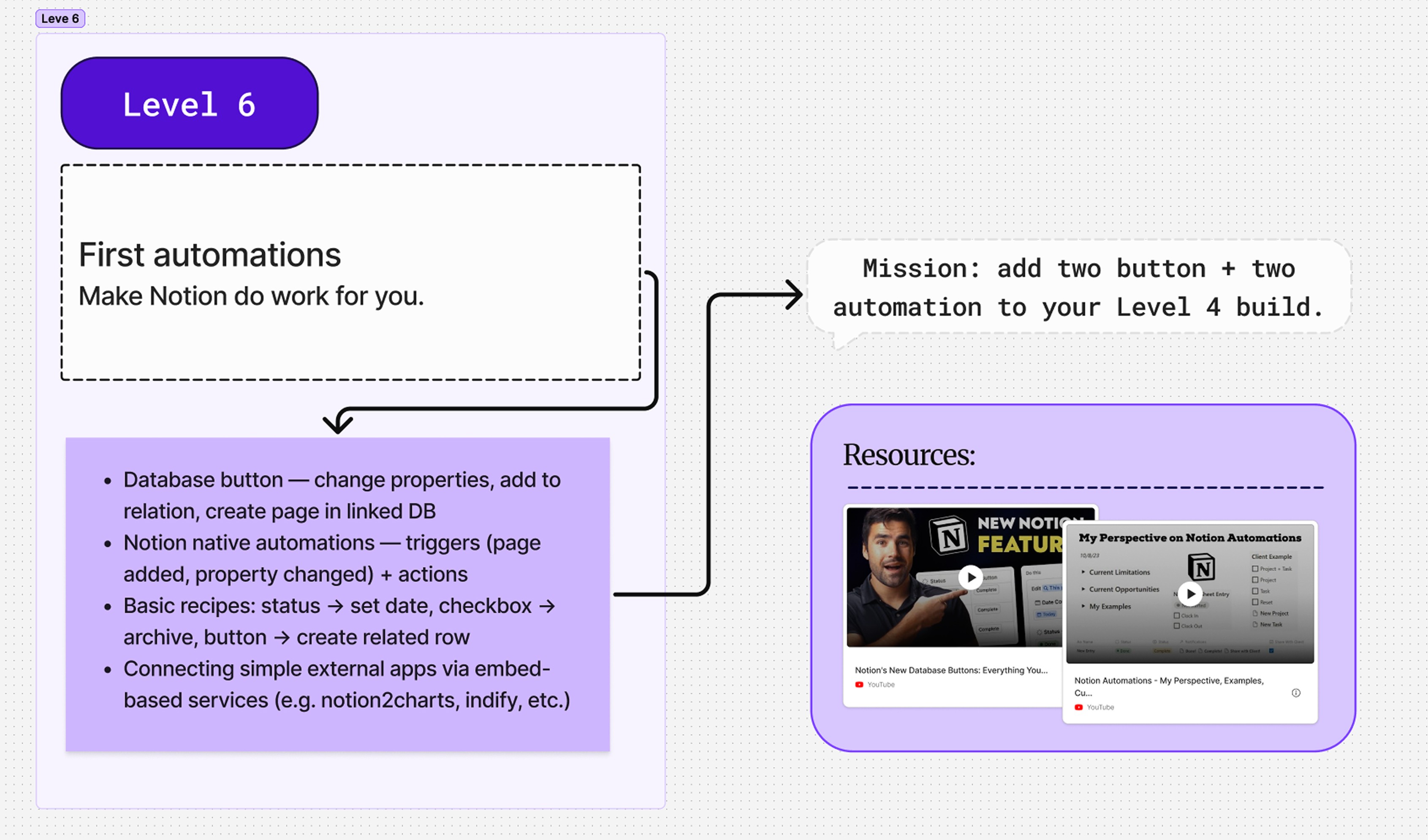
This is where Notion starts working for you instead of the other way around.
Two layers to learn here.
The database button comes first. A button you place inside a database that, when clicked, changes a property, adds a new page, or creates a related row in a connected database. Try one in every system you've built. They feel small, but they kill a surprising amount of busywork.
Then native automations. A trigger plus an action. When a page is added, set a date. When a status changes to Done, check a box. When a property hits a certain value, send a notification or update another field. Start simple, stack later.
A few starter recipes worth building:
Status changes to Done → completion date is set automatically.
New task created → due date set to tomorrow.
Checkbox flipped → page archived.
After Level 6, your system stops feeling like a static document. Things start happening on their own. That's the moment most people fall in love with Notion.
Level 7 — Interface 2.0 and advanced views
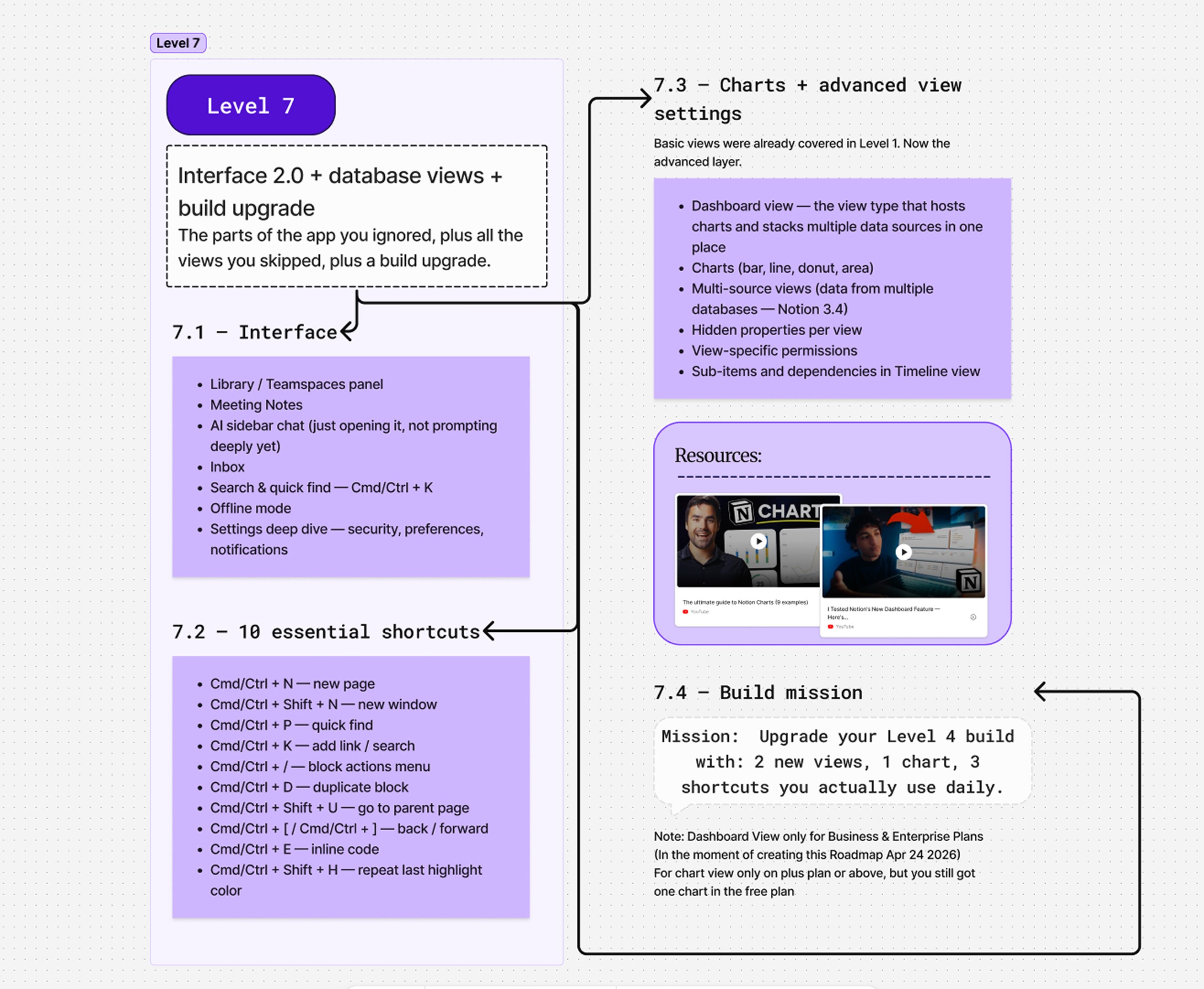
Time to circle back to the parts of the app you skipped, plus all the views you weren't ready for in Level 1.
7.1 — The deeper interface
Open every panel you've never clicked. The library. The teamspaces panel. Meeting notes. The inbox. The AI sidebar (just open it — we'll use it properly later). And learn Cmd/Ctrl + K for quick find. You'll touch that shortcut more than any other.
Also poke around in settings. Notifications, security, preferences. None of it is glamorous, but it's where a lot of "why is Notion doing that?" answers live.
7.2 — Ten shortcuts you actually need
Don't try to learn all of them. Pick ten and use them daily until they're muscle memory. A solid starter pack:
Cmd/Ctrl + N— new pageCmd/Ctrl + Shift + N— new windowCmd/Ctrl + P— quick findCmd/Ctrl + K— add a link or searchCmd/Ctrl + /— block actions menuCmd/Ctrl + D— duplicate blockCmd/Ctrl + Shift + U— jump to parent pageCmd/Ctrl + [andCmd/Ctrl + ]— back and forwardCmd/Ctrl + E— inline codeCmd/Ctrl + Shift + H— repeat the last highlight color
7.3 — Advanced views
The basics are done. Now the layer that makes your data feel visual.
Start with the dashboard view — a layout that lets you stack widgets and pull data from multiple databases into a single canvas. Then learn the four chart types: bar, line, donut, area. Each one shines in a different situation; play with all four.
After that, dig into multi-source views (multiple data sources in one view), per-view hidden properties, view-specific permissions, and sub-items + dependencies inside a Timeline view. Each one quietly upgrades how your build feels.
7.4 — Upgrade your Level 4 build
Open the system you built in Level 4 and add: two new views, one chart, and three shortcuts you commit to using daily. Same system, more polish.
Level 8 — Advanced formulas (the useful 80%)
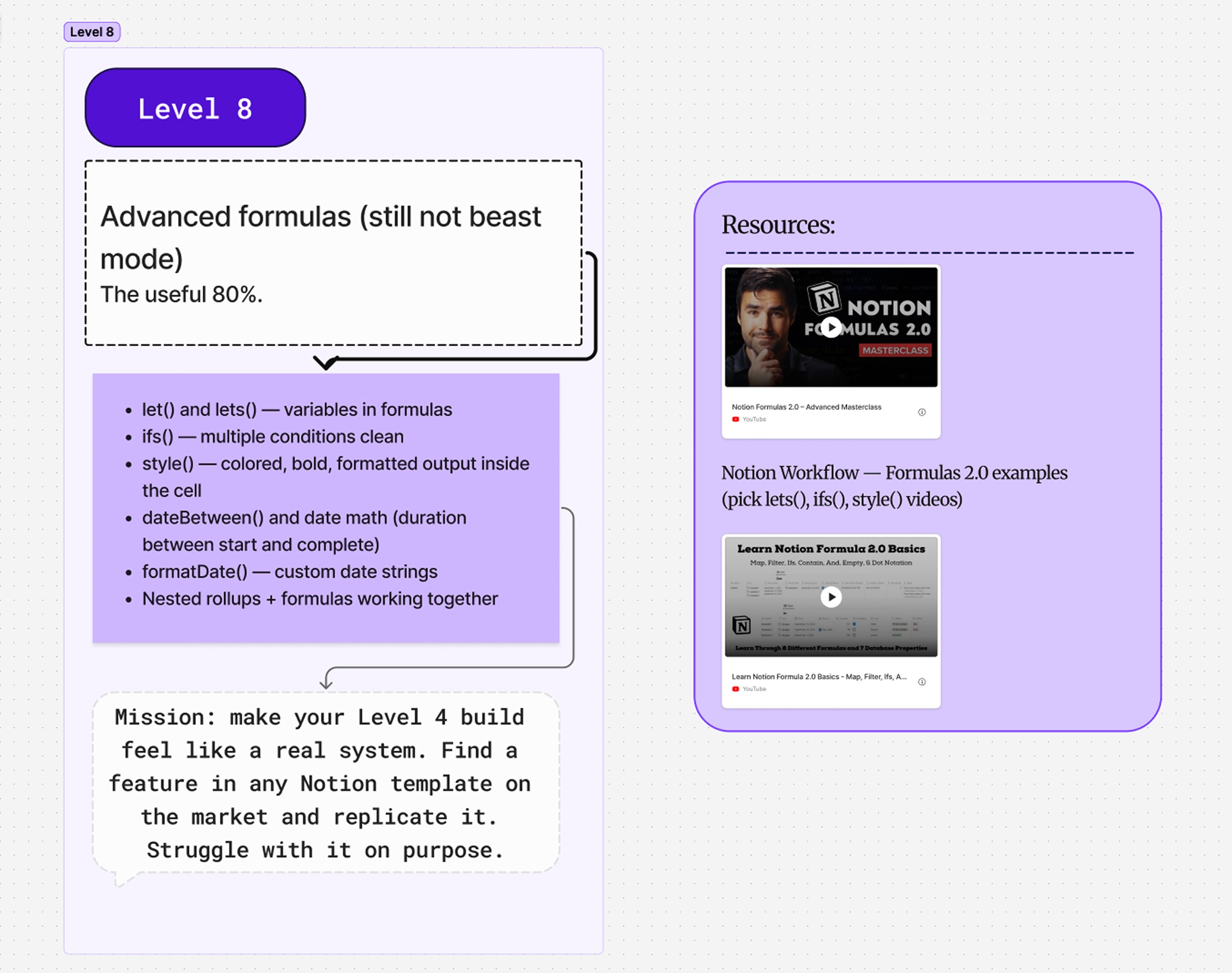
This is where formulas stop being math and start being design.
Five things to learn at this level:
let()andlets()for naming variables inside a formula so it actually reads like a sentenceifs()for stacking conditions cleanly without nestedif()hellstyle()for colored, bold, formatted output rendered inside the cellformatDate()for custom date strings that look the way you wantNested rollups and formulas working as one chain
The mission for this level matters more than the syntax. Find a feature inside any public Notion template — a streak counter, a color-coded priority, a goal tracker — and rebuild it from scratch. Don't copy it. Reverse-engineer it. Struggle with it on purpose. The struggle is what makes formulas stick.
For the lesson side, Thomas Frank's Notion Formulas 2.0 Advanced Masterclass covers everything at this layer.
Level 9 — Advanced automations
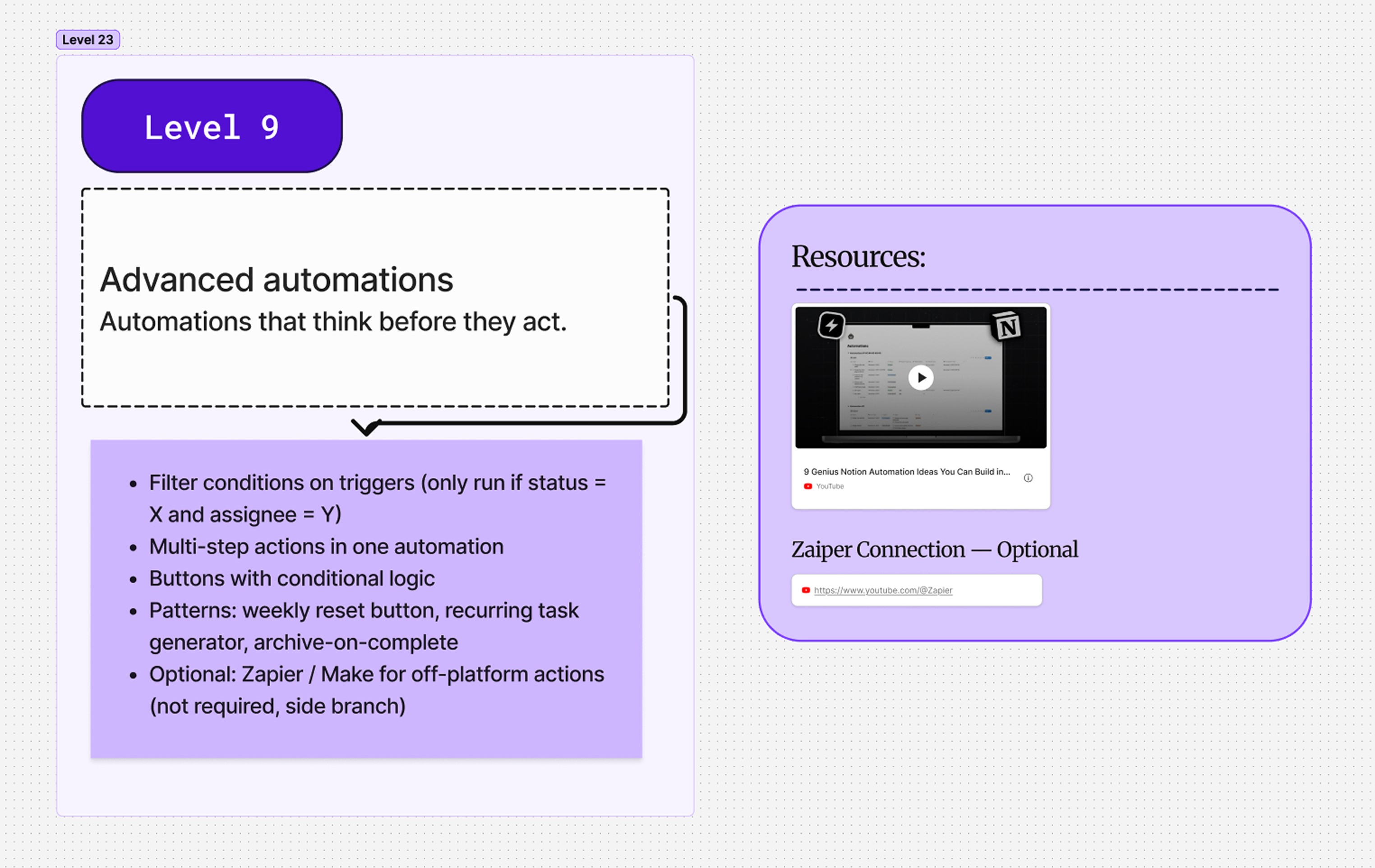
Automations that think before they act.
At Level 6 your automations fired blindly: trigger happens, action runs. Now you add a brain to them.
Three upgrades to play with:
Filter conditions on triggers — only fire if status is X and assignee is Y.
Multi-step actions — one trigger, three things happen in order.
Buttons with conditional logic — the same button does different things depending on the state of the row.
A few patterns worth building once:
A weekly reset button that clears a set of properties on Sunday night.
A recurring-task generator that spins up next week's tasks the moment you mark this week's as done.
An archive-on-complete flow that moves finished items to a separate database.
If you want to stretch beyond Notion itself, Zapier and Make let you connect Notion to external apps. That's optional. Skip it unless you have a specific cross-app workflow in mind.
Level 10 — The polish layer
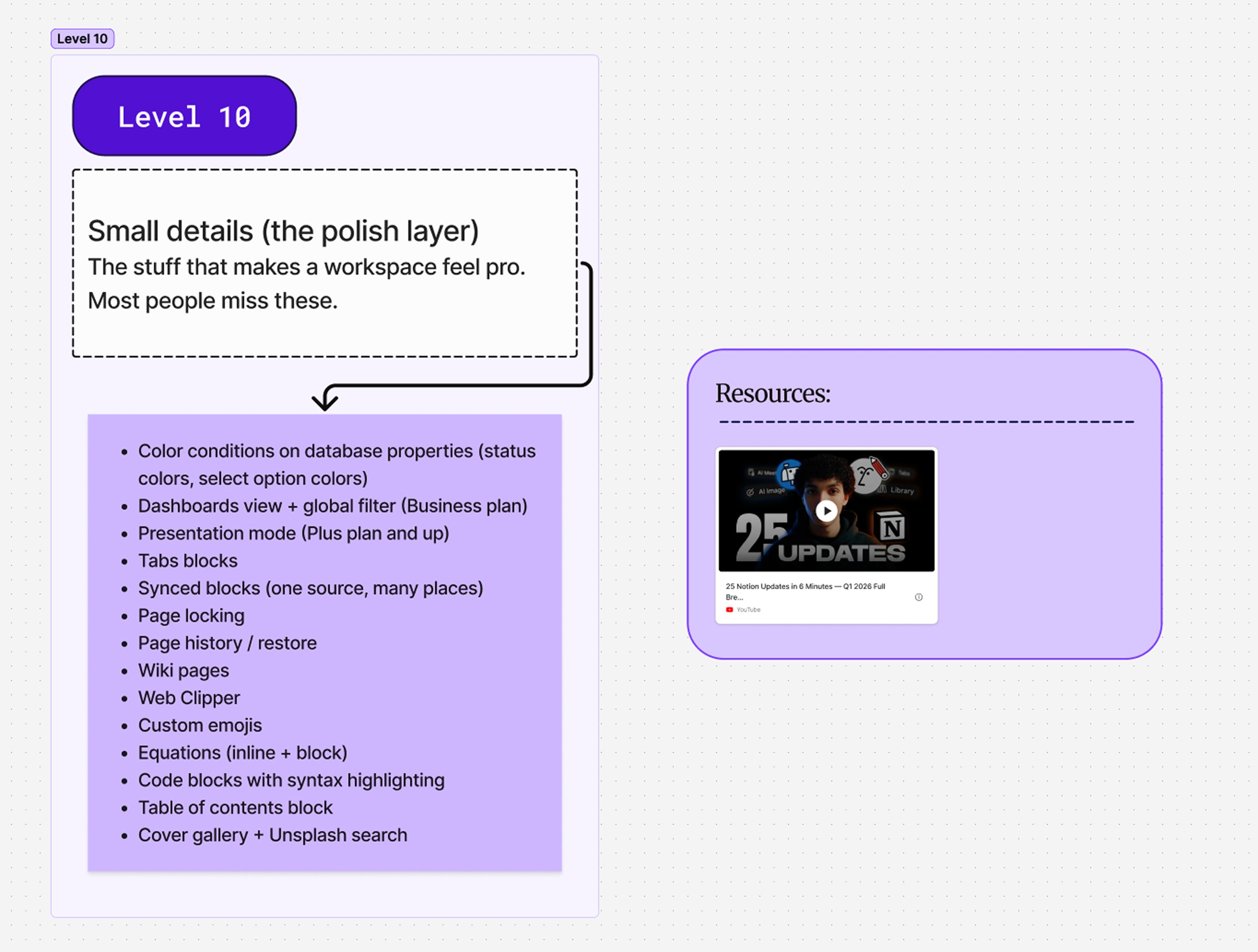
Level 10 is the level that makes a workspace feel professional. Almost none of it is essential. All of it is what separates "uses Notion" from "actually knows Notion."
Things to play with:
Color conditions on properties so a status visually screams "overdue."
Presentation mode — turn any page into a slide deck just by dropping in dividers.
Tab blocks for sectioning long pages without making them feel long.
Synced blocks — write once, show everywhere.
Page locking, page history, restoring an old version of a doc.
Wiki pages and the verification system on top of them.
The web clipper for saving articles straight into a database.
Custom emojis. Inline and block equations. Code blocks with syntax highlighting. The table of contents block. Cover gallery and Unsplash search.
None of it is hard. Most of it is one click. The trick is just knowing it exists so you reach for it the moment it would help.
Level 11 — System logic
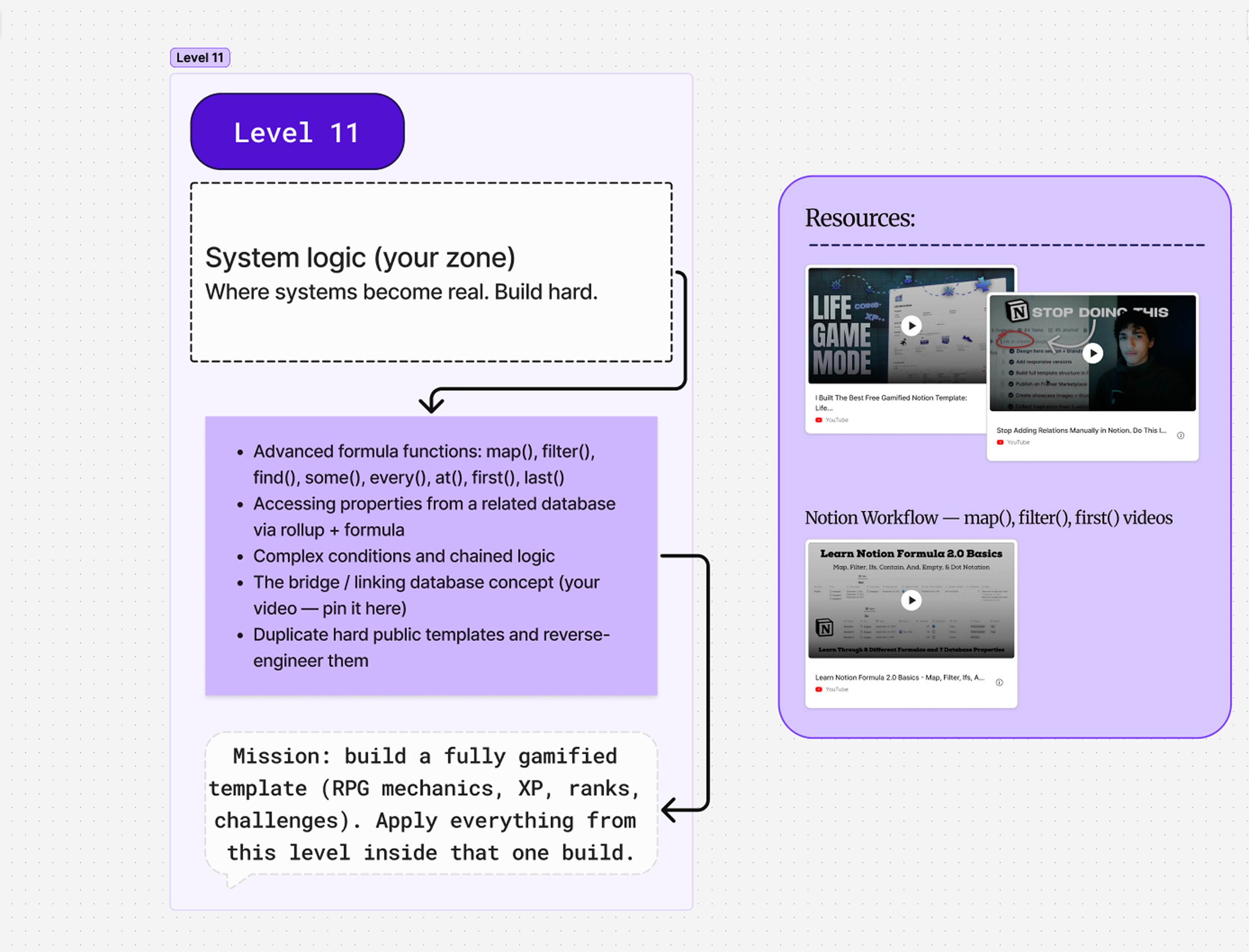
This is the deep end of formulas. The level where the people who go pro stop dabbling and start engineering.
The functions to add at this level all work with lists: map(), filter(), find(), some(), every(), at(), first(), last(). The moment a rollup returns an array of values, these are what let you actually do something with that array.
Then learn the move that's quietly the most powerful one in Notion: pulling a property from a related database through a rollup, then transforming it inside a formula. That's how databases stop being separate islands and start behaving like one connected system.
There's also a concept I call the bridge or linking database — a small connector database whose only job is to glue two big databases together cleanly. It deserves its own write-up, and I have a video on it linked in the resources section of this roadmap.
The mission at this level is the toughest one in the whole roadmap: build a fully gamified template from scratch. XP points. Ranks. Challenges. Rewards. Apply everything you've learned at Level 11 inside that single build. Whatever you can imagine, ship it.
Level 12 — Teams and advanced sharing

The team layer.
Three things to actually understand:
Open, closed, and private teamspaces — and which one each part of your org belongs in.
Teamspace owners, members, and permission groups — and how to invite people at scale without micromanaging access page by page.
The deeper permission model — page-level vs. database-level vs. teamspace-level access, and how to give a guest access to one client project without exposing the rest of your workspace.
If you're building for a team, an agency, or a product, this level is non-negotiable. If you're a solo creator, skim it now and come back the day you bring someone in.
Thomas Frank has a clean walkthrough of teamspaces and permissions that covers everything in this level.
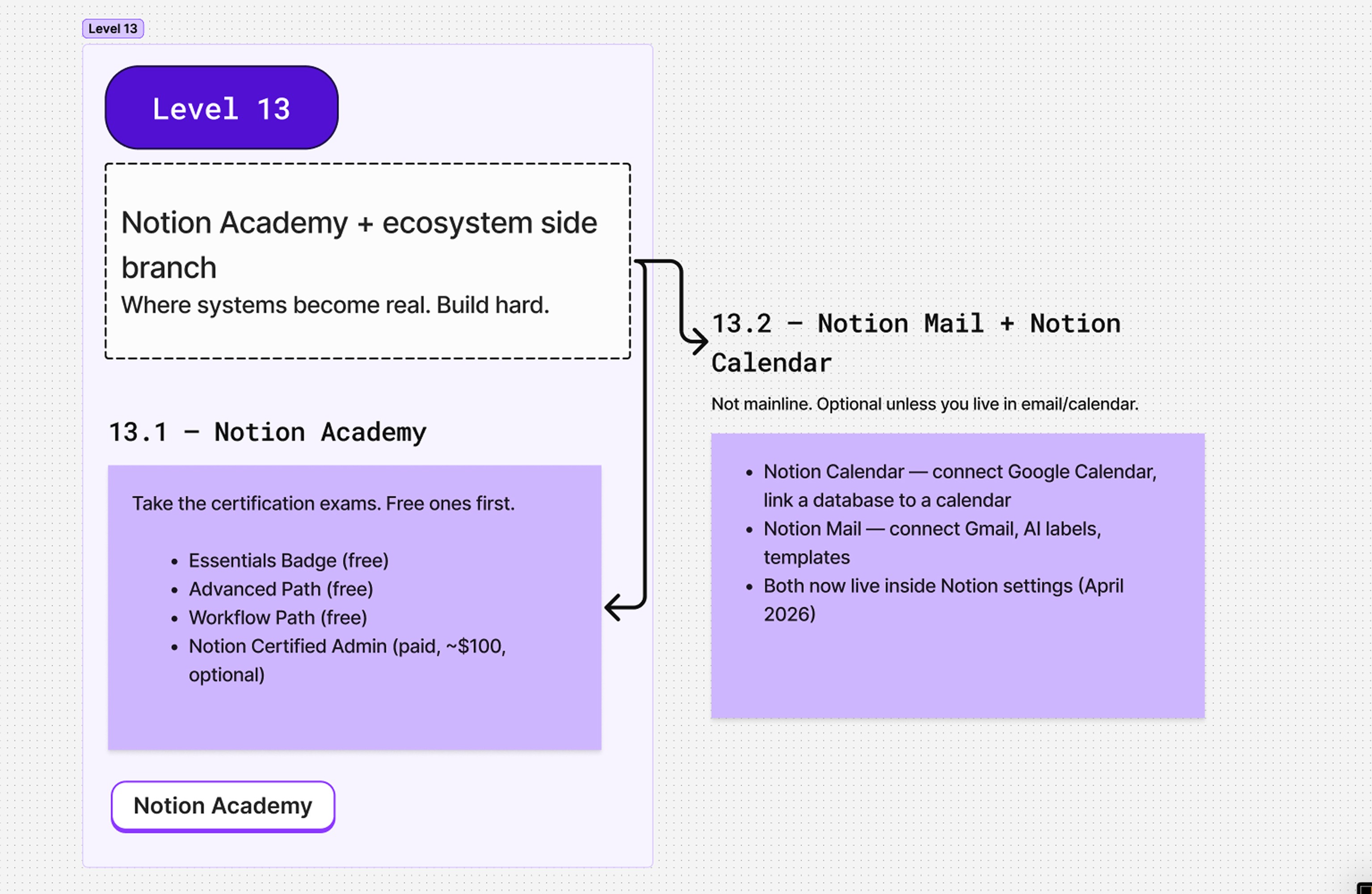
Level 13 — Notion Academy and the ecosystem
13.1 — Notion Academy
Notion Academy runs free certification exams that double as a great gut-check on what you've actually learned. Take the Essentials badge, the Databases badge, and the Automations badge. They're free. They're not hard. And they force you to confirm you know what you think you know.
There's a paid Notion Certified Consultant exam too if you're heading toward consulting. Optional.
13.2 — Notion Mail and Notion Calendar
Side branch. Worth it if you live in your inbox and calendar. Skip if you don't.
Both now sit inside Notion settings. Notion Calendar connects to Google Calendar and lets you link a database to a calendar view. Notion Mail connects to Gmail and brings in AI labels, templates, and inbox automations. If your day starts in email and calendar, plugging them into the same workspace as your tasks pays off fast.
Level 14 — Sharpen your edge
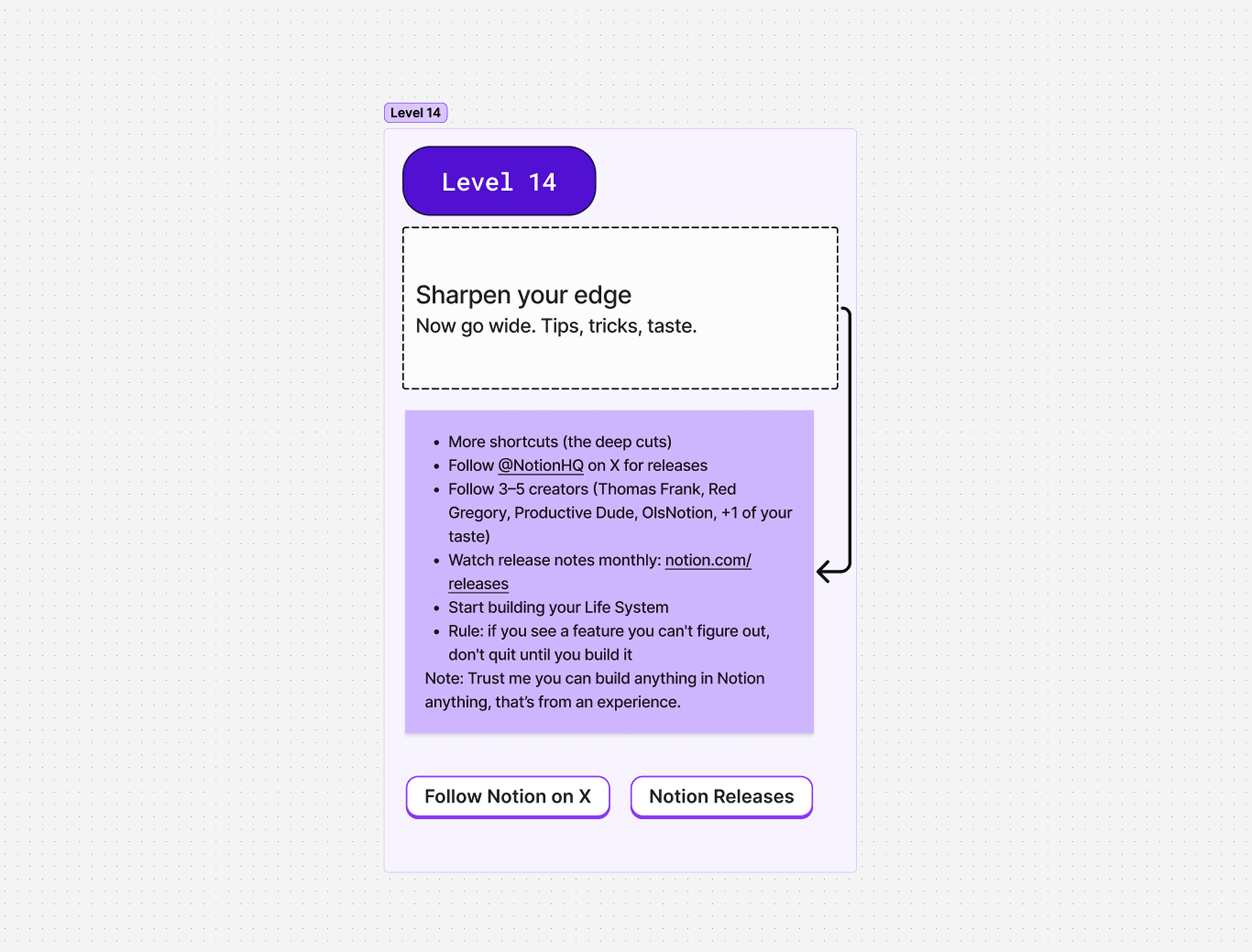
Now go wide.
Learn the deeper shortcuts — the ones nobody talks about. Follow @NotionHQ on X; every release lands there first. Pick three to five creators in the space and follow them too. Thomas Frank, Red Gregory, Productive Dude, and me (@osama_latrache) is a solid starter list. Watch the monthly release notes the day they drop.
Then build the one thing every serious Notion user eventually builds: your own personal operating system. Call it a second brain, a life OS, whatever fits — one workspace that holds your tasks, your goals, your notes, your projects, your inbox. Not a template you bought. One you wired together yourself.
The rule for this level: when you see a feature you can't figure out, don't quit until you've built something with it.
Level 15 — The AI journey starts
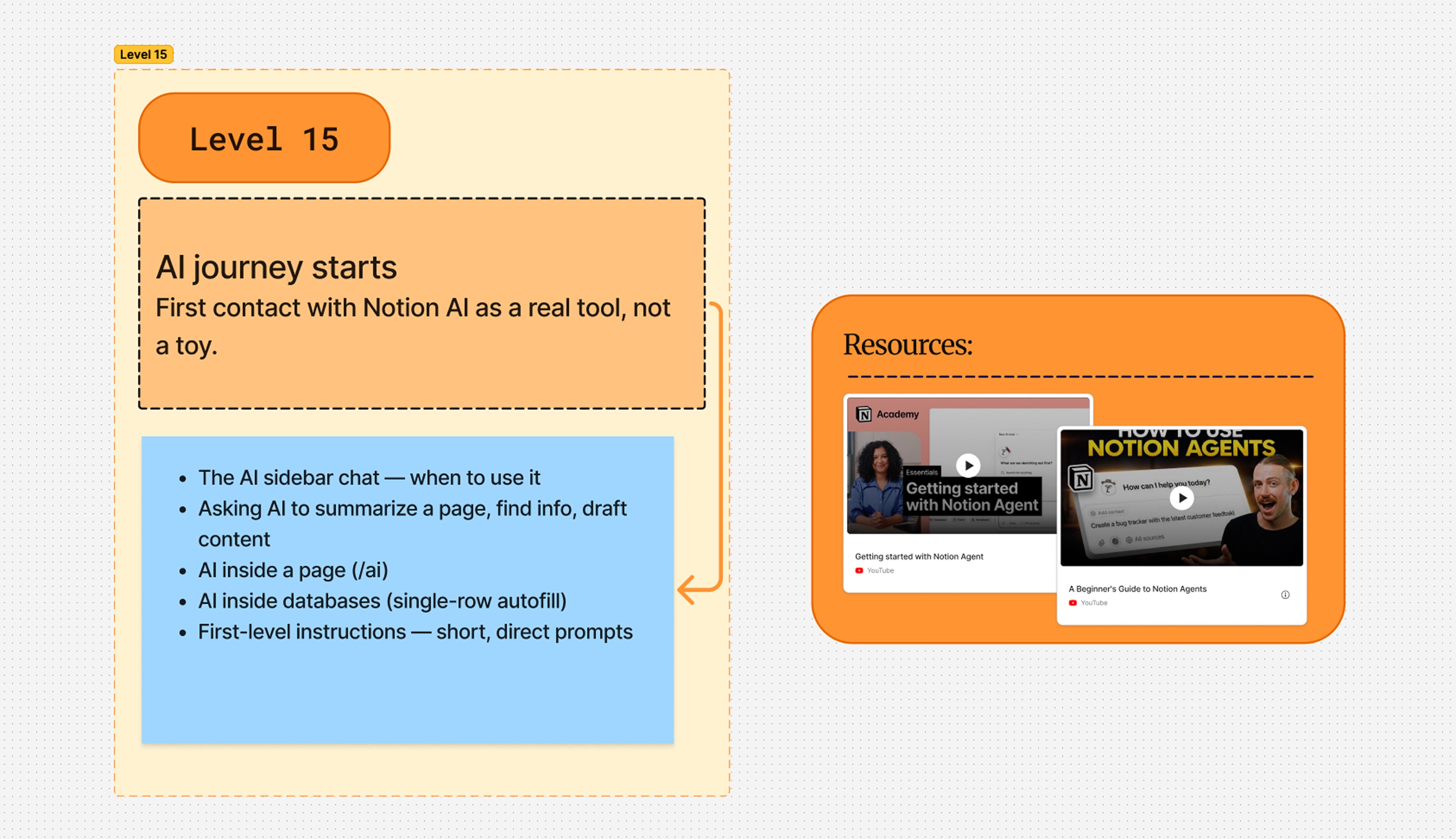
First real contact with Notion AI as a tool, not a toy.
Open the AI chat. Ask it to summarize a long page. Ask it to find something across your workspace. Have it draft a doc from a rough outline. Then drop into a database and try single-row autofill — pick a row, hit AI, watch it fill the empty properties from context.
Keep your prompts short and direct at this level. No long custom instructions yet. Just learn what AI is actually good at — and what it isn't.
One warning: don't lean on AI before you know Notion. If you do, you'll never actually learn the tool. AI is for speed, not for replacing your understanding of the app underneath.
Level 16 — Custom instructions and AI skills
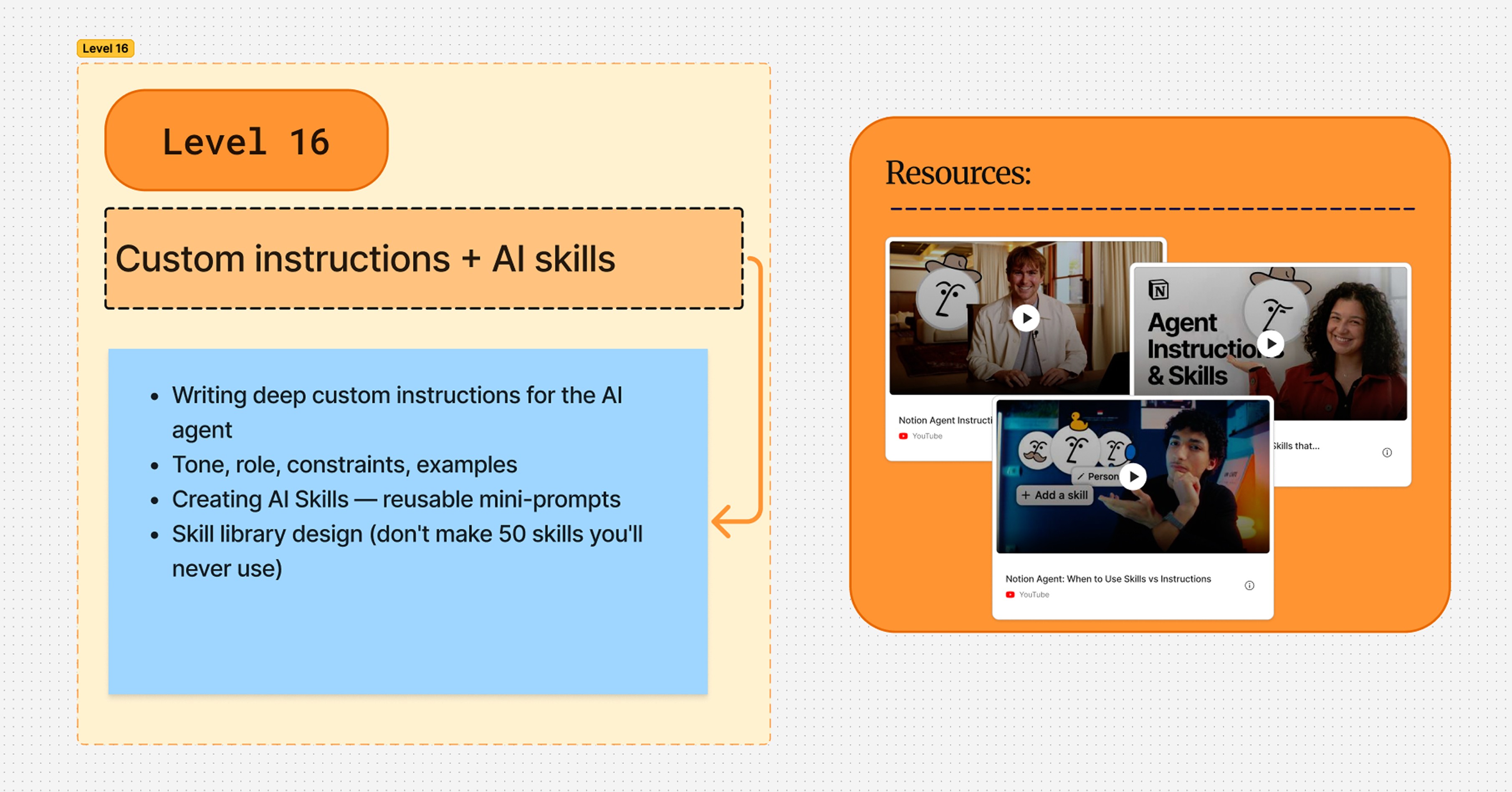
Level 16 is where AI stops being a generic chatbot and starts feeling like your assistant.
Custom instructions are the personality and the rules. Tell it the tone you want. The role it should play. The constraints it should respect. Examples of writing you like and writing you don't. The more specific you are, the more it sounds like you instead of like ChatGPT.
AI skills are the prompts. If you keep typing the same instruction over and over — "rewrite this in my voice," "turn this into a tweet thread," "summarize this in five bullets" — turn it into a skill. Save the prompt as a reusable mini-tool you can fire by name.
Two different layers, often confused:
Instructions shape how AI behaves across everything.
Skills are specific prompts you trigger when you need them.
Don't go wild and build fifty skills. Build three or four that save you real time every day. Quality over inventory.
Level 17 — AI images and database AI
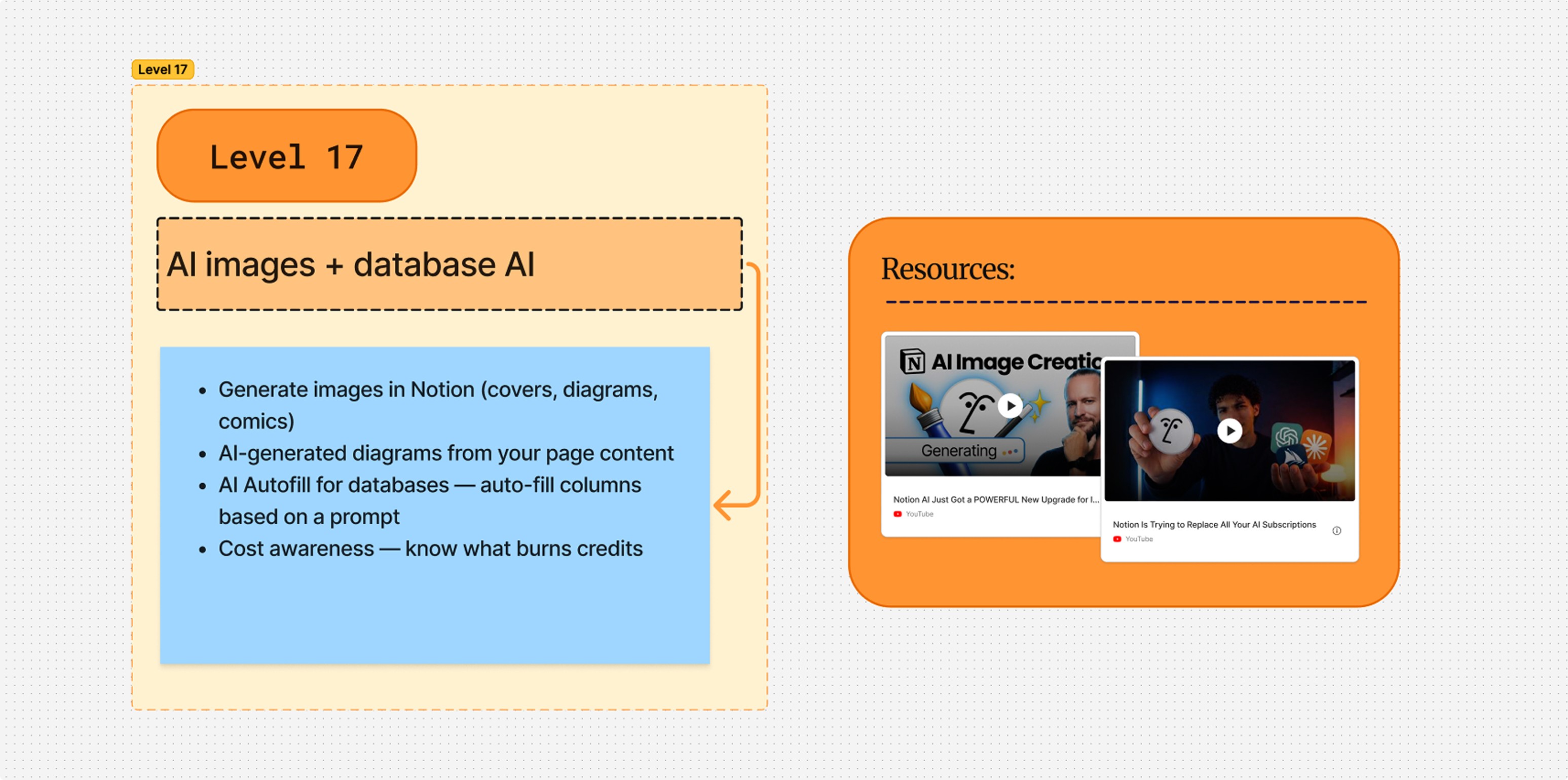
The creative side and the data side of Notion AI.
On the creative side, you can generate images directly inside Notion. Page covers, simple diagrams, fun visuals. Describe what you want and it ships. Use it where it actually helps — covers for a wiki, illustrations for an article, quick visual explanations of an idea.
On the data side, AI inside databases goes way beyond single-row autofill. Try AI on a whole column at once. Have it research topics, summarize linked pages, extract structured data from messy entries. A column that used to take an hour of typing becomes a five-second prompt.
One thing to watch: this layer burns AI credits. Use it where it saves you real time. Don't burn credits on stuff you could've typed in twenty seconds.
Level 18 — Custom AI agents
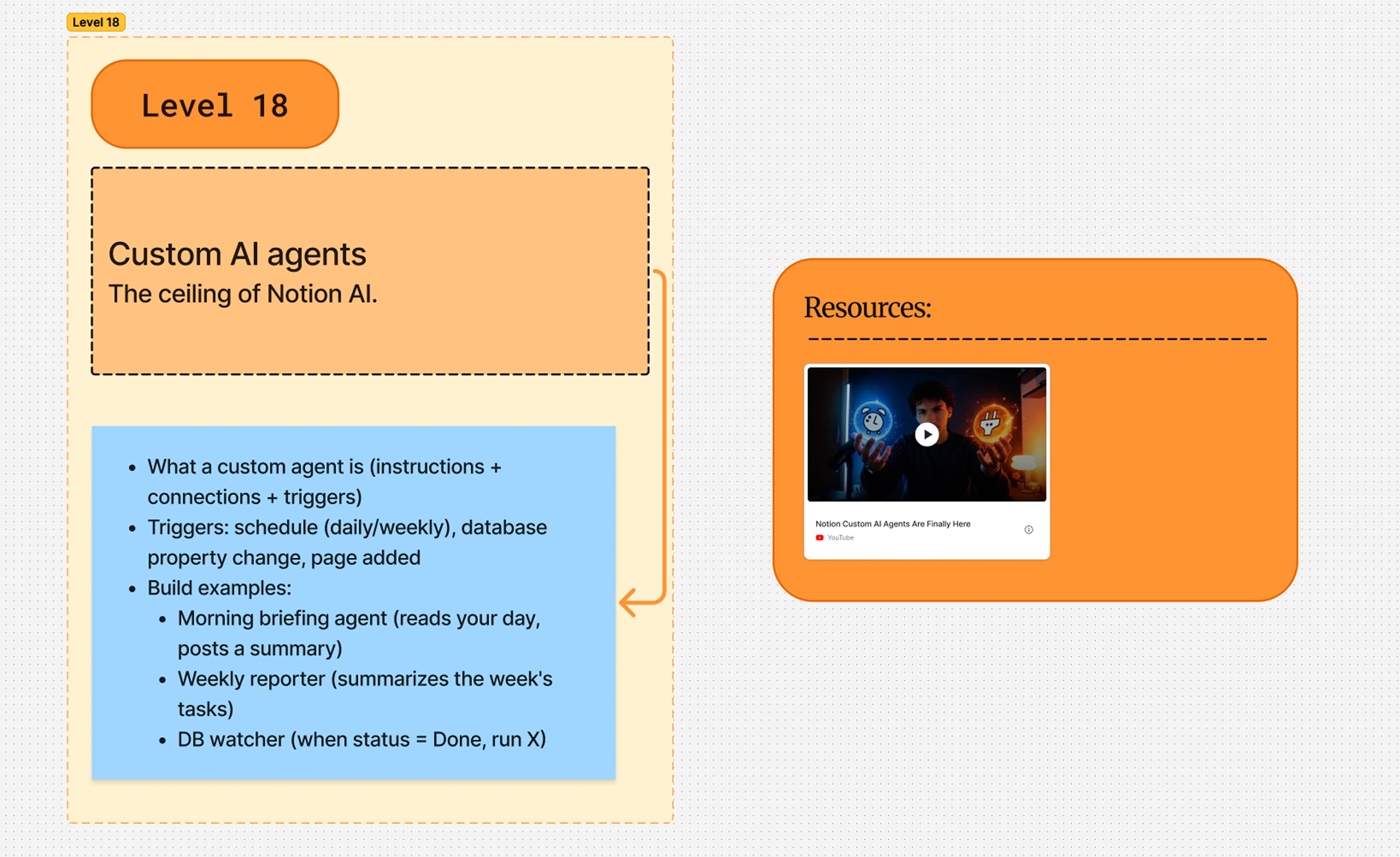
This is the ceiling of Notion AI right now.
A custom agent is three things glued together: instructions (what it should do), connections (what tools it can use), and a trigger (when it should run). Get those three right and you're not using AI anymore — you've built one.
Three agents worth building first:
A morning briefing agent that reads your calendar, your tasks, and your inbox, then writes you a one-page summary of the day before you've finished your coffee.
A weekly reporter that looks at the past seven days of work and writes you a debrief every Sunday.
A database watcher that runs the moment a status changes — sends a Slack message, creates a related row, updates a property somewhere downstream.
This is the moment Notion stops being a tool you use and starts being a system that runs in the background while you do other things.
Level 19 — Refine
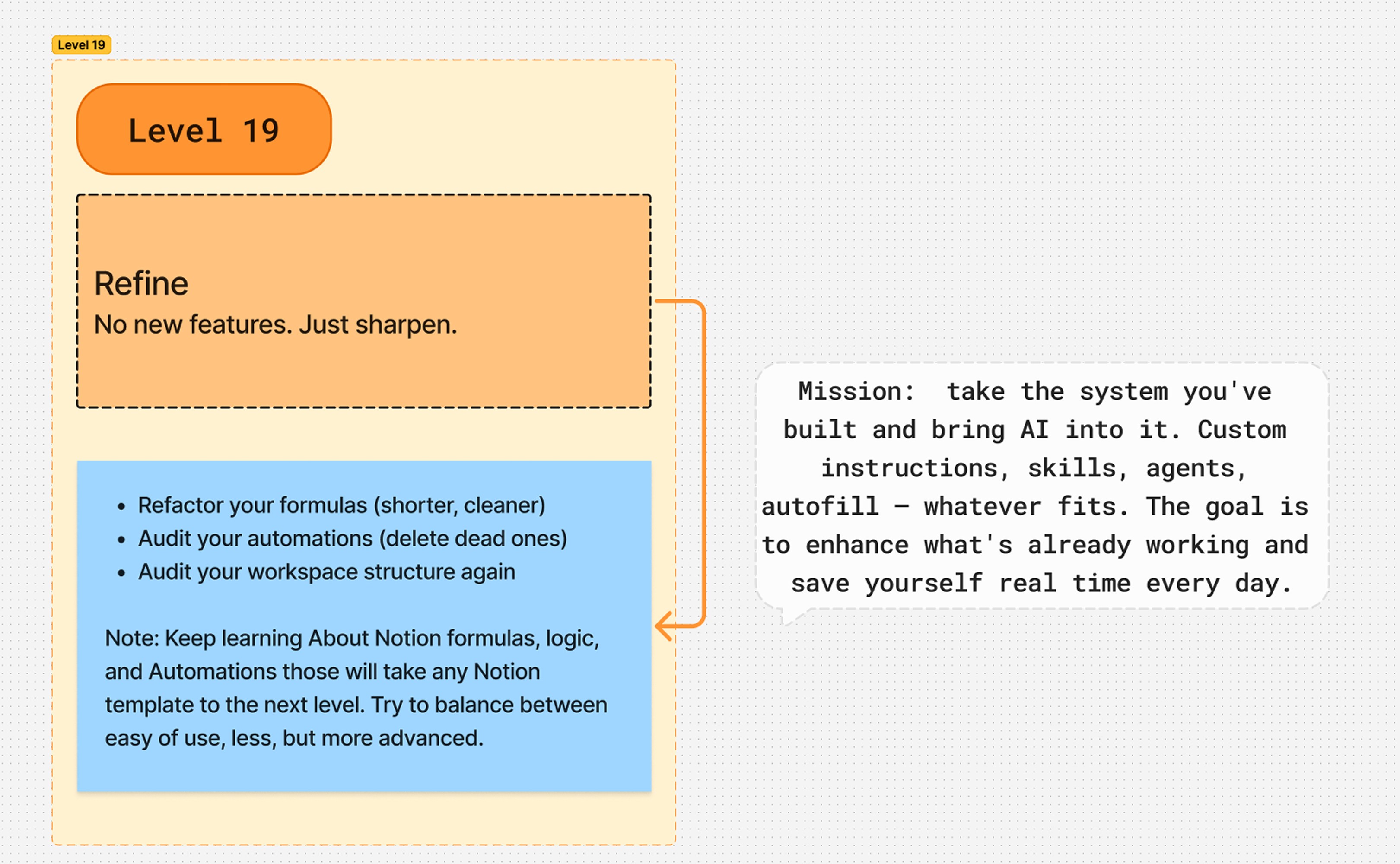
No new features at Level 19. This level is sharpening.
Open your build and audit it. Are your formulas longer than they need to be? Tighten them. Are there automations firing that nobody pays attention to anymore? Kill them. Is your workspace structure still the one you sketched at Level 4a, or has it drifted?
Then bring AI into your existing system on purpose. Custom instructions for the tone of your reports. A skill that drafts your weekly review. An agent that watches one specific database. Whatever fits the system you already trust.
Level 19 is the line between "I know Notion" and "Notion runs the parts of my life I don't want to think about." Mission: rebuild one old system from scratch with everything you now know.
Final advice
Three things that outlast every level on this roadmap:
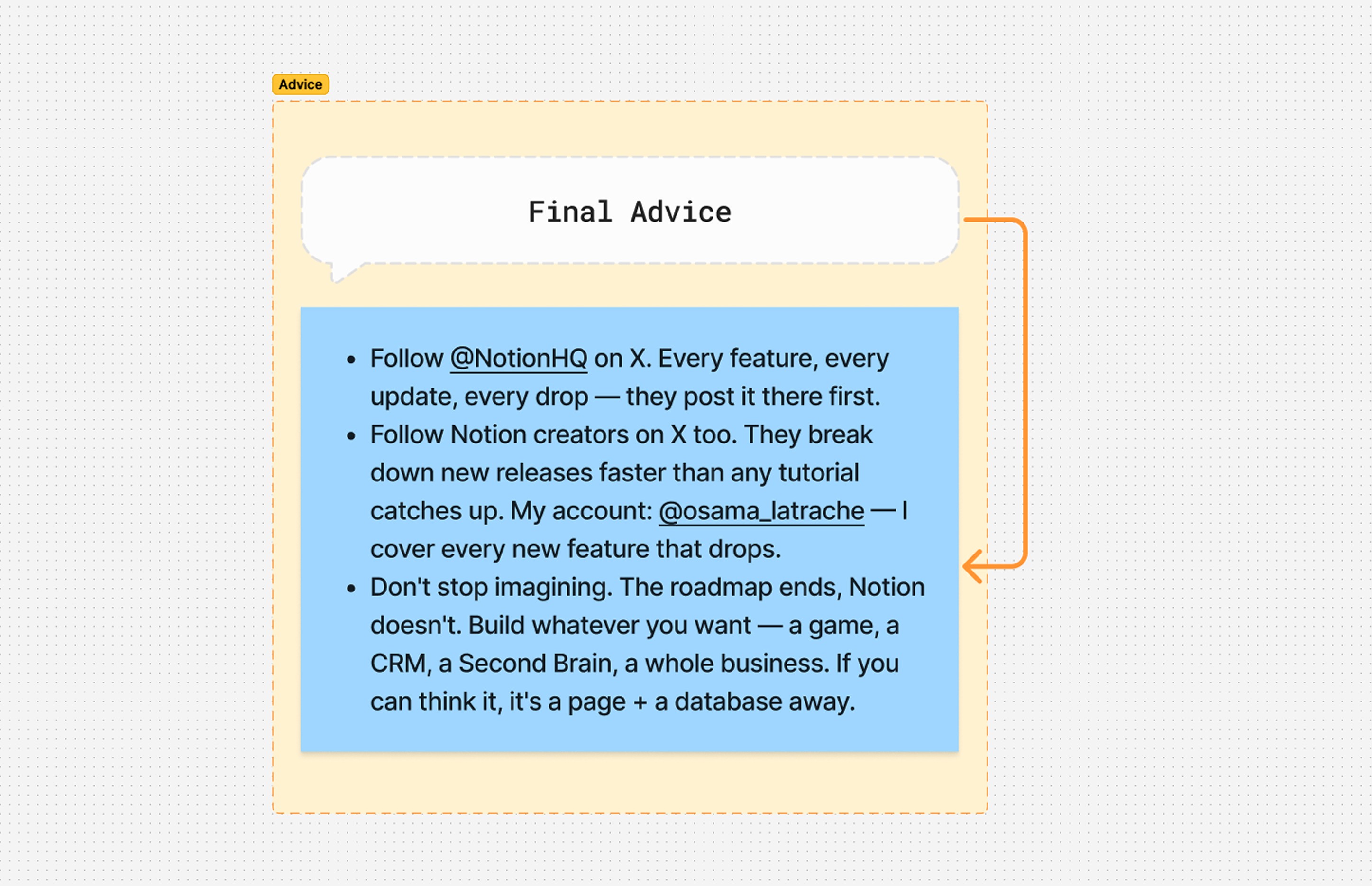
Follow @NotionHQ on X. Every feature, every update, every drop lands there first. The release notes page lags by days.
Follow Notion creators on X. They break down new releases faster than any tutorial channel can. My account, @osama_latrache, covers every new feature the day it lands.
Don't stop imagining. The roadmap ends at Level 22. Notion doesn't. Build whatever you want — a game, a CRM, a Second Brain, a whole business. If you can imagine it, it's a page and a database away.
Level 20 — The Notion API (optional)
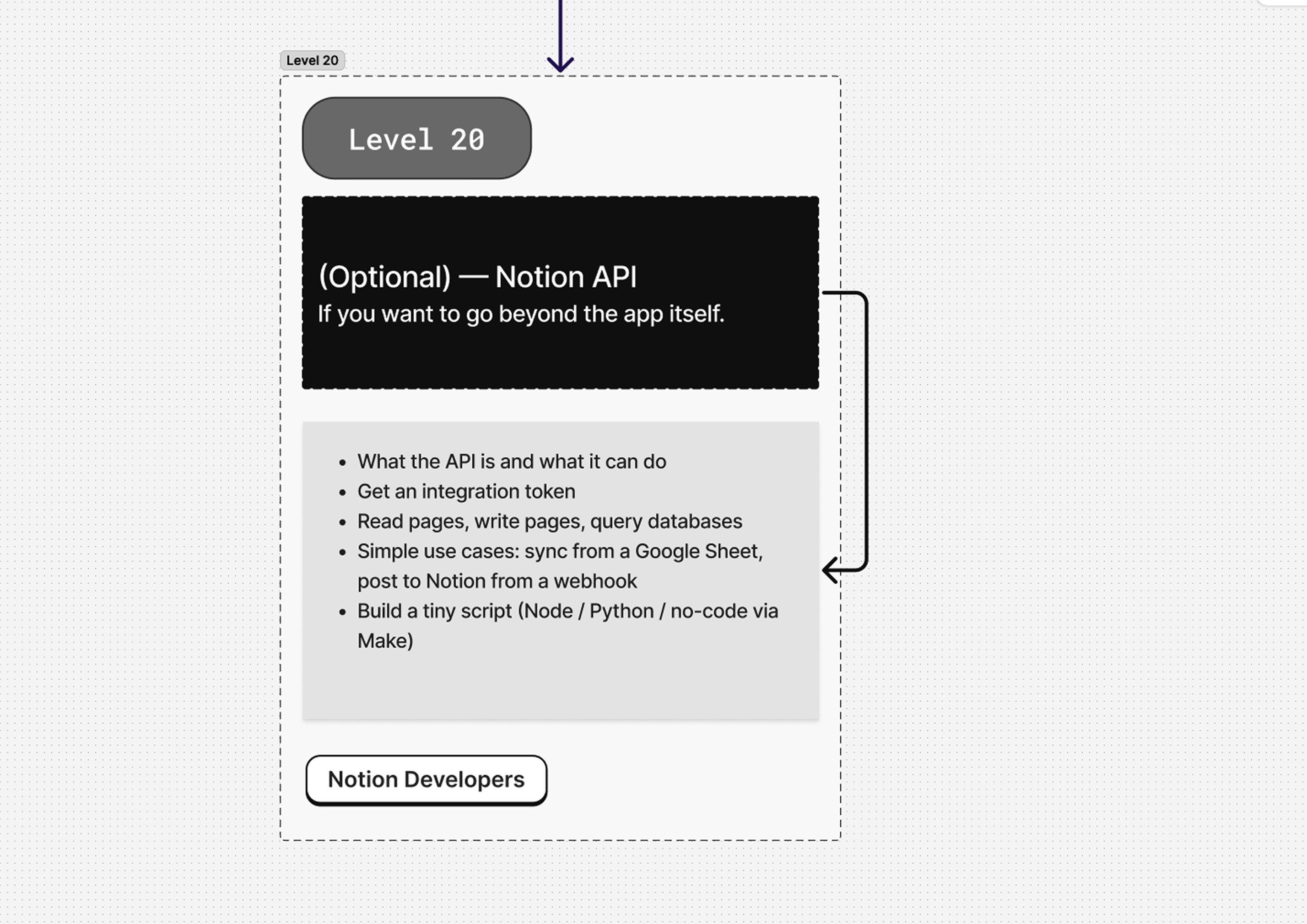
Level 20 is for the people who want to push past the app itself.
The Notion API lets code talk to your workspace. Read pages. Write pages. Query databases. Trigger updates from outside Notion. You don't need to be a senior developer to use it — basic Node, Python, or even a no-code tool like Make is enough to build small, useful scripts.
Starter projects worth attempting:
Sync a Google Sheet into a Notion database every morning.
Drop a webhook into a service and have it create a Notion page when something happens.
Pull stats from an external API and post them into a daily log database.
If you're building tools, products, or integrations, this is where the real customization unlocks.
Level 21 — MCP (Model Context Protocol)
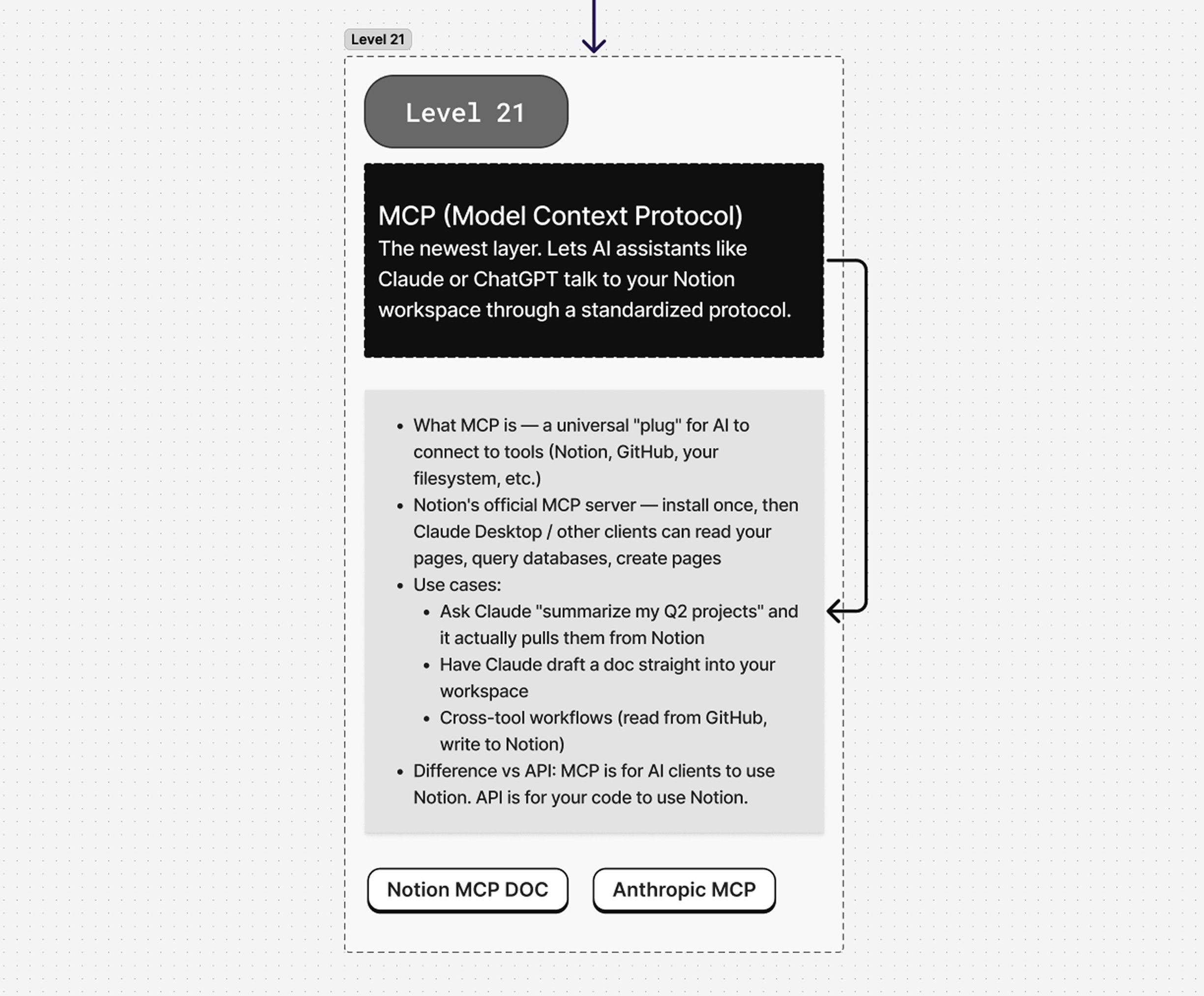
Level 21 is the newest layer in the stack.
MCP is a standardized protocol that lets AI clients — Claude, ChatGPT, others — talk directly to your tools. A universal plug. Notion has an official MCP server, which means once you install it, an external AI assistant can read your pages, query your databases, and create new ones, all from outside Notion.
Use cases that suddenly become trivial:
"Summarize my Q2 projects" said to Claude — and Claude actually pulls them from Notion.
A draft written in ChatGPT lands as a finished page in your workspace.
Cross-tool flows — pull data from GitHub, write the report into Notion, all in one prompt.
Quick mental model: the API is your code talking to Notion. MCP is AI clients talking to Notion. Different audiences, different layers.
Level 22 — Build apps and become a partner
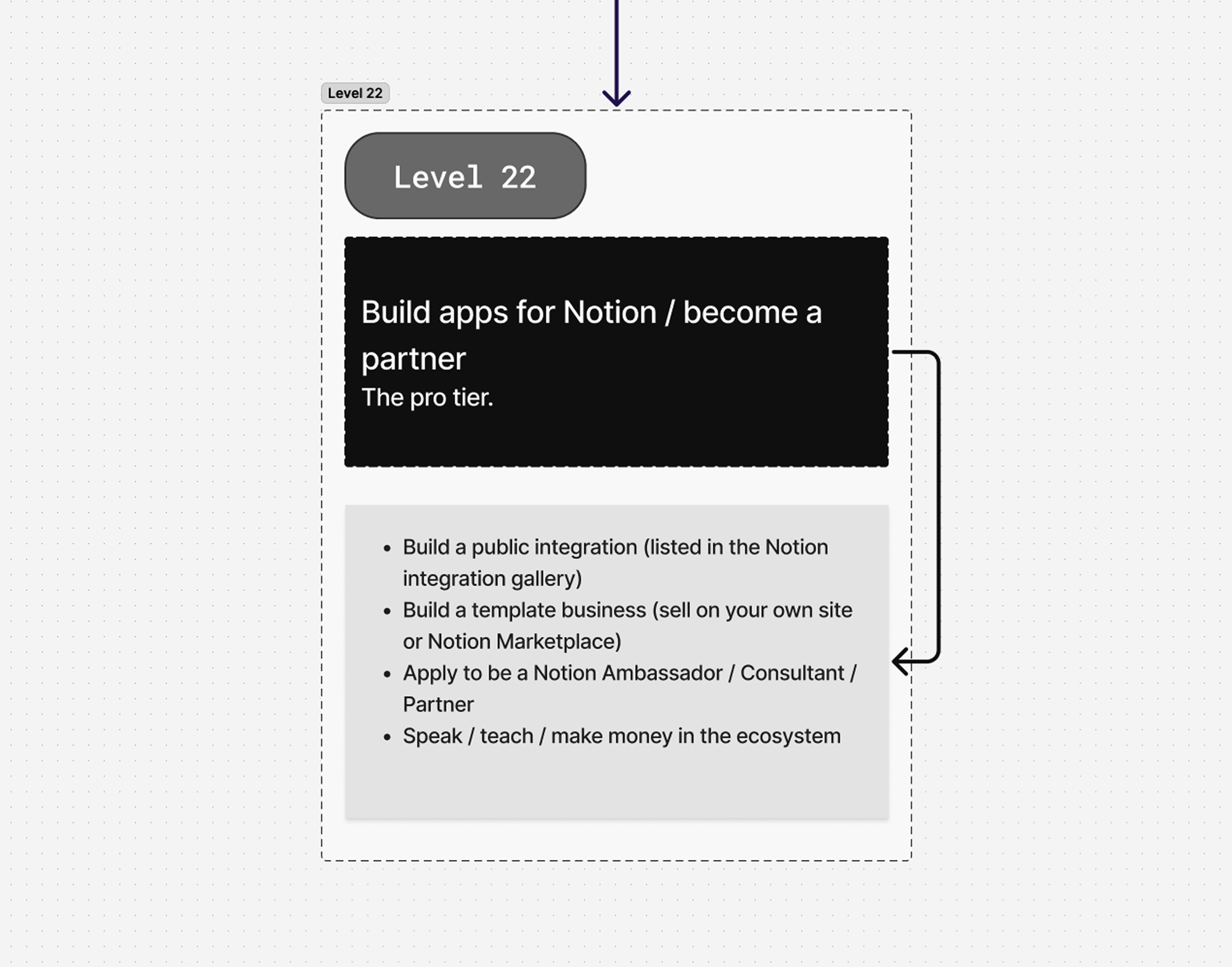
The pro tier. This is where Notion stops being a tool you use and starts being a career.
A few directions you can take it:
Build a public integration listed in the Notion gallery so other workspaces can install it.
Sell templates — on your own site, in the Notion template marketplace, or both.
Apply to be a Notion Ambassador, Consultant, or Partner. Each path has its own bar; all three are real businesses.
Teach. Speak at events. Make content. The Notion ecosystem is one of the few software communities where there's still genuine room to come in and become a name.
Level 22 isn't for everyone. If your only goal is to run your own life from Notion, stop at Level 19. If you want to build a career around it, this is where the door opens.
And that's the full Notion 2026 roadmap. Twenty-three levels. Zero to running Notion as a system instead of a tool.
Bookmark this page. Find the level you're actually at. Start there.
This roadmap will get you there. But if you'd rather skip hundreds of hours and start from a system that's already been refined for years, that's exactly what I built Second Brain and Creator Brain for.
Same six years of work that shaped this roadmap, just packaged into two ready-to-use systems — one tuned for your whole life, one tuned for creators.
👉 Second Brain 6.0 — the life OS
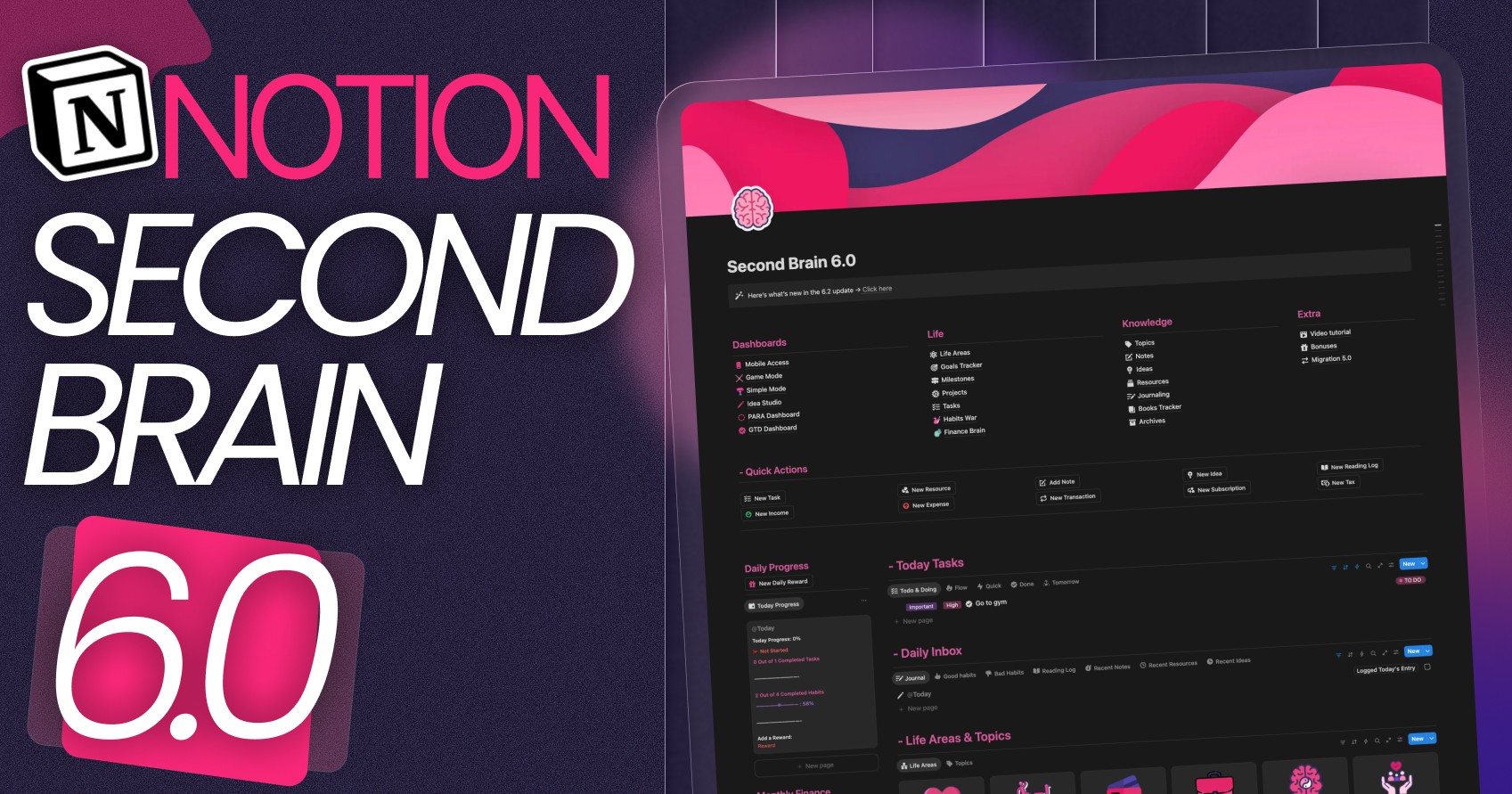
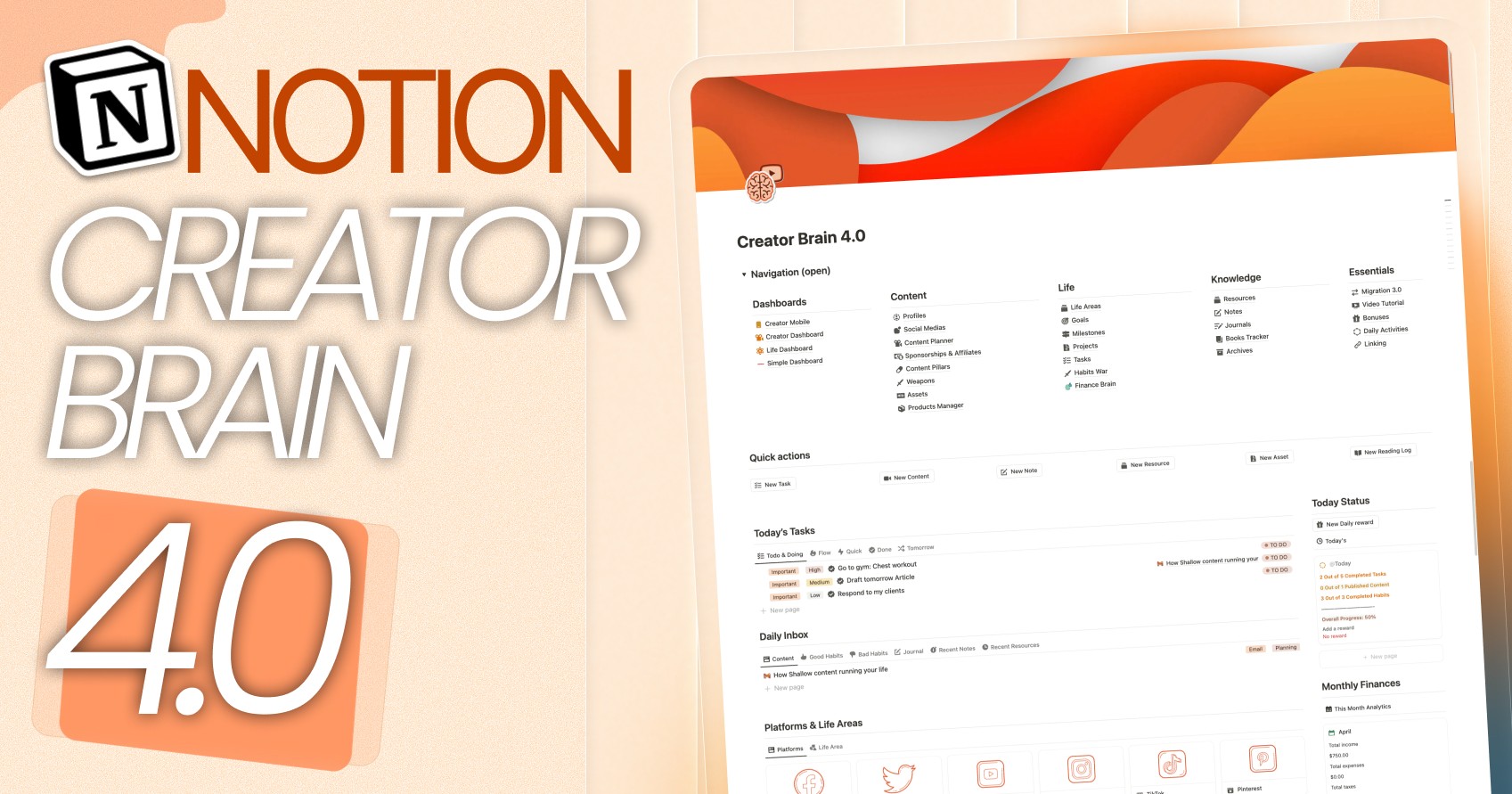
👉 Creator Brain 4.0 — the creator OS
Osama (OLS)